
Translators
Dragoman writes one file per language for your translators and imports their files back after you have seen every change. Translators don’t need Unreal Engine or Dragoman: CSV files and Excel workbooks open in Excel, LibreOffice and Google Sheets, PO files in Poedit, Crowdin, Lokalise and other translation tools, and XLIFF files in translation tools such as Crowdin, Lokalise, Phrase, memoQ and Trados.
The round trip
Section titled “The round trip”-
Scan (or Gather, if texts were added or changed).
-
Write a package from the Translators menu, for example To do: every language (CSV).
-
Send the files to your translators. Each package has a
README.txtthat explains what to keep and what to fill in. -
When a file comes back, choose Translators > Import translations… and pick it.
-
Review the changes in the import dialog and click Import. With Compile after import on, the editor shows the new text right away.
-
Commit the target’s changed archives and
.locresfiles, and Dragoman’s data folder.
Packages
Section titled “Packages”| Menu item | Contains |
|---|---|
| To do: language (CSV) | The missing, changed and machine texts of the language selected on the Texts page. |
| To do: every language (CSV) | The same, one file per language. |
| To do: every language (Excel) | The same as .xlsx workbooks, with the same columns as the CSV. |
| To do: every language (XLIFF 1.2) | The same as XLIFF 1.2 files for translation tools. |
| To do: every language (XLIFF 2.0) | The same as XLIFF 2.0 files, with the maximum lengths in the size restriction module. |
| To do: every language (PO) | The same as PO files. |
| Everything: every language (CSV) | Every text with its current translation, for a full review. |
“Every language” means every translated language of the target: not the native language and not the pseudo language.
Each package is a new folder in Saved/Dragoman/Packages (in the Output Directory), named after the target and the time, for example Game_2026-10-12_100512. It holds one file per language, named <Target>_<culture> with the format’s extension (.csv, .xlsx, .xlf, .po), for example Game_de.csv, and the README.txt. A notification has a link to open the folder.
Each text comes with its context (asset and property, or source file and line), the translator note and maximum length, the glossary terms it uses, a translation memory suggestion and a status. In PO files, changed and machine texts are marked fuzzy; in XLIFF they need review.
CSV and Excel columns
Section titled “CSV and Excel columns”Namespace, Key, Source, Translation, Status, Context, Note, MaxLength, Glossary, Suggestion
| Column | Content |
|---|---|
Namespace, Key |
Identify the text. Translators must not change them. |
Source |
The text in the native language. |
Translation |
The current translation, or empty. Translators fill in or change this column. |
Status |
missing, changed, machine or done. |
Context |
Where the text is used: the asset and property, or the source file and line. Up to three places, separated by |. |
Note, MaxLength |
From the notes file. |
Glossary |
The glossary terms the source uses: Health = Lebenspunkte, or Ashfall = keep for names that stay as they are. Separated by ; . |
Suggestion |
A translation memory suggestion for missing and changed texts. |
CSV files are UTF-8 with a byte order mark. In Excel, open them with Data > From Text/CSV and choose UTF-8, or use LibreOffice or Google Sheets. The Excel workbook opens directly, with one sheet named after the language, a frozen header row and filters.
PO files
Section titled “PO files”Each text is one entry with msgctxt set to Namespace,Key, as in Unreal’s own PO files. The key, the source locations, the note, the maximum length, the glossary terms and the memory suggestion are written as extracted comments (#.), which translation tools show to the translator. Changed and machine translations are marked fuzzy, so the tools ask for a review.
XLIFF files
Section titled “XLIFF files”XLIFF is the exchange format of translation tools. Format arguments, rich text tags and escapes travel as protected inline codes, so the tool keeps them intact; in plural blocks such as {Count}|plural(one=coin,other=coins) only the words are text to translate.
- XLIFF 1.2: a unit per text with the id
Namespace,Key. The maximum length is the unit’smaxwidthin characters. Translated texts areapproved; changed and machine texts have the stateneeds-review-translation, missing onesneeds-translation. - XLIFF 2.0: a unit per text with a stable hashed id and the name
Namespace,Key. The maximum length goes into the size restriction module. Machine and changed texts are translated segments marked as such.
In both, the note, the location, the maximum length, the glossary terms and the memory suggestion are notes of the unit.
Importing
Section titled “Importing”Translators > Import translations… opens a file dialog in the package folder. Pick a translated CSV, Excel, PO or XLIFF file. Dragoman reads it and opens the import dialog. Nothing is written until you confirm.
Dragoman imports:
- its own CSV, Excel, PO and XLIFF packages,
- any CSV or Excel sheet with at least the columns
KeyandTranslation(NamespaceandSourceare recommended,Cultureoptional; in Excel, the first sheet), - PO files exported by the Localization Dashboard or written by Poedit, Crowdin and other tools,
- XLIFF 1.2 and 2.0 files from translation tools. They are matched by their unit id or name, and by the key when a tool kept only that.
XLIFF states are kept: a target the tool marks for review (or as a machine suggestion) goes into the review queue, and a source copied into an untranslated target is not taken as a translation.
Which language
Section titled “Which language”The language of each row comes from, in this order:
- a
Culturecolumn, - the XLIFF target language, the PO header (
Language:) or the Excel sheet name, - the file name:
<anything>_<culture>, for exampleGame_de.csvorGame_pt-BR.po, - the folder name, as in the Localization Dashboard’s export layout (
Localization/Game/de/Game.po).
Language codes like de-DE or ja-JP find the target’s de and ja. The commandlet’s -Culture sets the language when none of these does.
The import dialog
Section titled “The import dialog”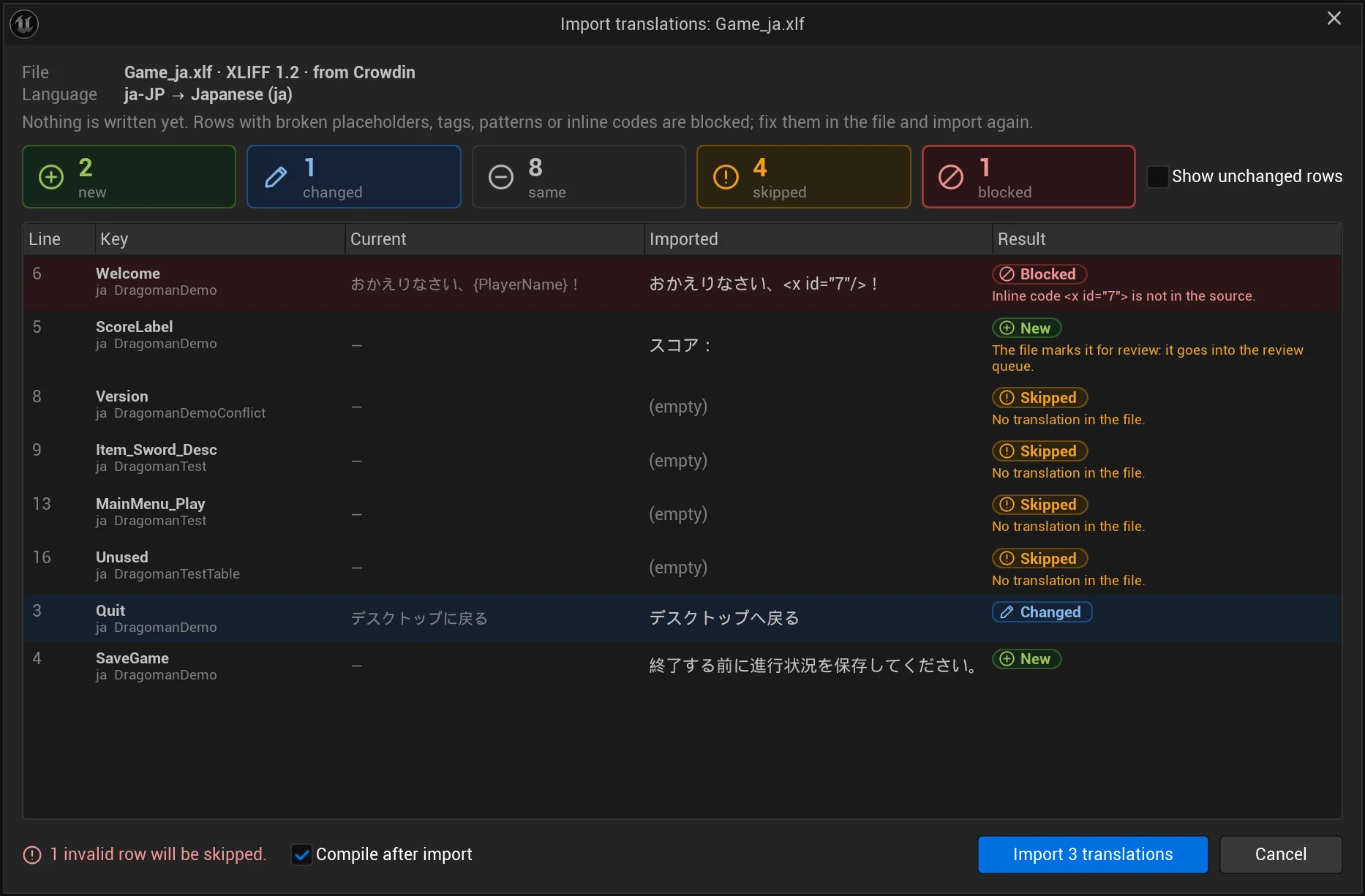
At the top, the dialog shows the file with its format and the tool that wrote it (“Game_ja.xlf · XLIFF 1.2 · from Crowdin”) and the language (“ja-JP → Japanese (ja)”). It counts the rows that are new, changed (replace an existing translation), same, skipped and blocked, and lists every row with its line, key, current and imported translation and the result. Blocked rows are listed first, then the rows with a note. Show unchanged rows adds the rows that don’t change anything.
Rows are blocked when they would break the game, and skipped when there is nothing to import:
| Note | Result | Why |
|---|---|---|
Unknown language: add a Culture column or name the file <Target>_<culture>.csv. |
Blocked | The language could not be found. |
| “code” is not a translated language of the target. | Blocked | The language is not in the target, or it is the native language. |
| The key is not in the target (renamed or removed since the export?). | Blocked | The text no longer exists. |
| Placeholders do not match the source: … | Blocked | The translation lost or added a format argument. |
| Rich text tags do not match the source: … | Blocked | The translation lost or added a tag. |
| Broken format pattern: … | Blocked | Unreal’s format validation fails for the language. |
| Inline code <x id=“7”> is not in the source. | Blocked | An XLIFF target has an inline code the source doesn’t have. |
| No translation in the file. | Skipped | The translation is empty, or the tool left the target untranslated. |
Fix blocked rows in the file and import it again. The line under the list counts them: “1 invalid row will be skipped.”
A row whose source changed since the export is imported, but as a changed translation: “The source changed since the export (was “…”). Imported as changed: review it.” It shows up on the Changed filter of the Texts page. A row the file marks for review is imported as a machine translation: “The file marks it for review: it goes into the review queue.”
Compile after import (on by default) builds the .locres files right after the import, so the editor shows the new text. Click Import n translations to write them, or Cancel.
After the import, Dragoman writes the archives of the languages in the file, removes machine marks from the imported texts (except the ones the file marks for review), adds the translations to the memory and scans the translations again. The status bar shows the result, for example “Imported Game_ja.xlf: 2 new, 1 changed, 5 skipped.”
From the command line
Section titled “From the command line”-Export=csv, po, xlsx, xliff or xliff2 (with -Todo for the to-do texts only) writes a package after the scan; -Import=<file> imports a CSV, PO, Excel or XLIFF file without the dialog, and -DryRun only lists what would change. See Command line & CI.