
Crafting UI
Craftwright’s menu logic is written in C++ in widget base classes. A Widget Blueprint with one of them as parent gets that logic by naming its widgets as listed below. Every named widget is optional: leave out what you don’t need, and lay out and style the rest freely in the UMG designer.
The example widgets in /TACraftwright/Examples/UI are plain Widget Blueprints built on these classes: WBP_CraftingMenu with WBP_CraftingRecipeEntry, WBP_CraftingStack, WBP_CraftingOutput, WBP_CraftingJob, WBP_CraftingCategoryTab and WBP_CraftingKeyHint, and the HUD tracker WBP_CraftingTracker with WBP_CraftingTrackedRecipe and WBP_CraftingTrackerLine. Use them as they are, duplicate and restyle them, or build your own. Every text they write is a property you can change and localize; see Texts.
You don’t need these classes at all if you prefer your own UI: call Check Craft, Request Craft, Request Salvage, Request Cancel, Request Collect Tray and Track Recipe on the crafter. See Crafting.
Make your own menu
Section titled “Make your own menu”-
Create a Widget Blueprint and set its parent class to
TACraftwrightMenuWidget(File > Reparent Blueprint, or pick it when you create the widget). -
Add widgets with the names from the menu’s widgets, for example a Scroll Box named
RecipeBox, Vertical Boxes namedIngredientsBox,OutputsBoxandQueueBox, and a Button namedCraftButton. The names must match exactly. -
Create Widget Blueprints for one recipe entry (parent
TACraftwrightRecipeEntryWidget), one ingredient or output line (TACraftwrightStackWidget) and one queued job (TACraftwrightJobEntryWidget), each with its own named widgets. Add a category tab (TACraftwrightCategoryTabWidget) and a key hint (TACraftwrightKeyHintWidget) if you want tabs and key hints as widgets. -
In the menu’s Class Defaults, set Recipe Entry Class, Stack Class and Job Entry Class to them, and Output Stack Class, Category Tab Class and Key Hint Class if you made those.
-
Open the menu: Create Widget, then Setup (Crafter, Station), then Add to Viewport. Pass no station for hand crafting.
The menu
Section titled “The menu”TACraftwrightMenuWidget is a complete crafting menu for one crafter, by hand or at one station.
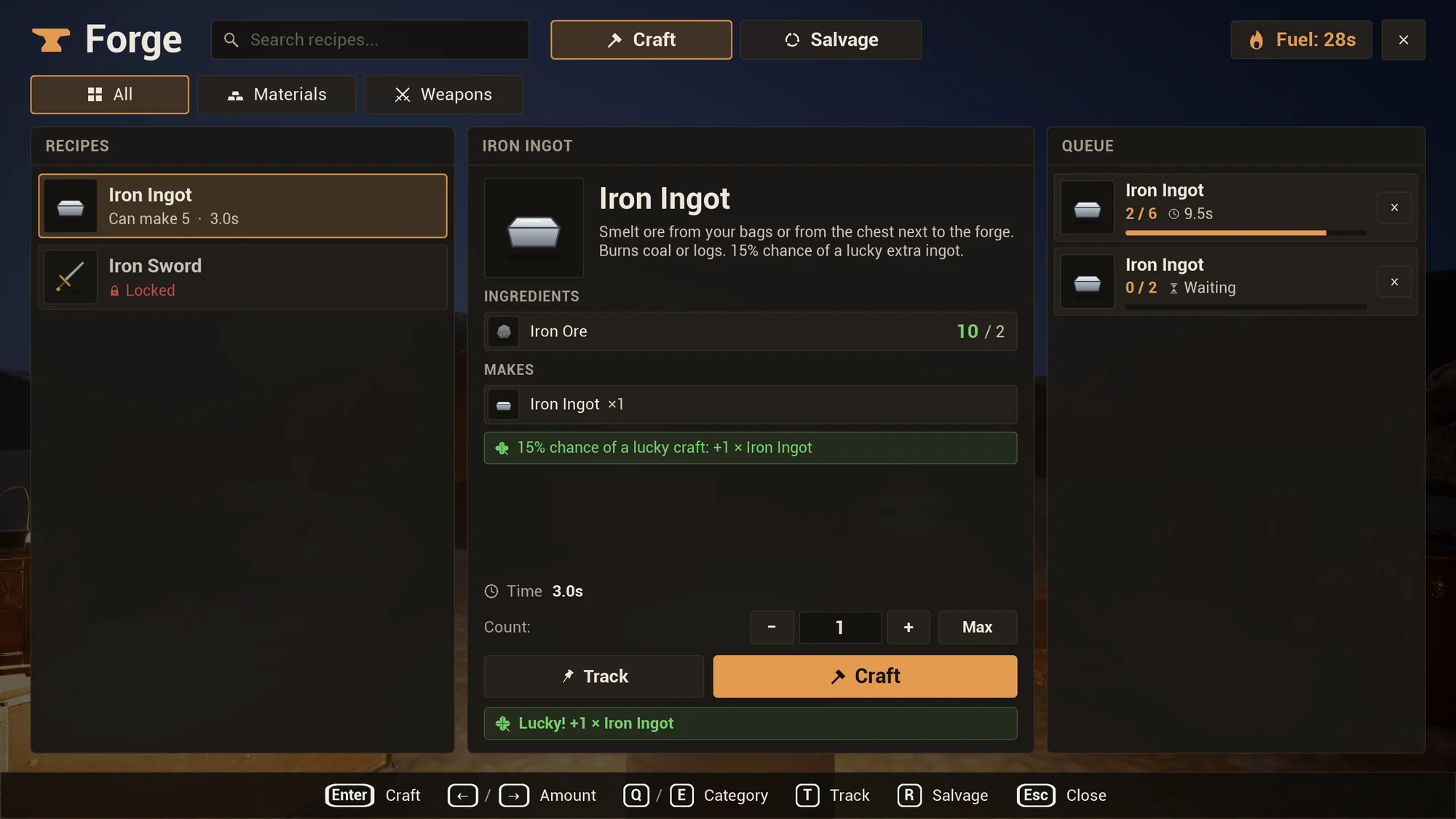
Menu widgets
Section titled “Menu widgets”| Name | Type | What the menu does with it |
|---|---|---|
TitleText |
Text Block | Hand Title Text (“Crafting”) for hand crafting, else the station’s Display Name (or its actor’s name) |
TitleIcon |
Image | The station’s Icon, or Hand Crafting Icon for hand crafting. Unset icons keep the designer image. |
SearchBox |
Editable Text Box | Lists only the recipes that match what you type; see Search |
CategoryBox |
Panel | Gets one Category Tab Class widget per category; see Category tabs |
CraftModeButton, SalvageModeButton |
Button | Switch between crafting and salvaging; shown only where something can be salvaged. See Salvage mode. |
CraftModeMarker, SalvageModeMarker |
Any widget | Shown while that mode is on, where the mode buttons show |
ListTitle |
Text Block | “RECIPES”, or “SALVAGEABLE ITEMS” in salvage mode |
RecipeBox |
Panel | Gets one recipe entry per listed recipe |
EmptyText |
Text Block | Shown when nothing is listed: your designer text, No recipe matches "{Search}". while a search finds nothing, or “You have nothing to salvage here.” in salvage mode |
DetailsTitle |
Text Block | Repeats the selected name |
DetailsIcon |
Image | The selected recipe’s icon (or its first output’s) |
DetailsName |
Text Block | The selected recipe’s name |
LockedIcon |
Any widget | Shown next to the name of a locked recipe |
DetailsDescription |
Text Block | The selected recipe’s Description; in salvage mode the item’s |
LockedBox, UnlockHintText |
Any widget, Text Block | Shown for a locked recipe, with how to unlock it; see Locked recipes |
IngredientsTitle, IngredientsBox |
Text Block, Panel | “INGREDIENTS”, and one stack line per ingredient. In salvage mode “SALVAGE” and the item it takes. |
OutputsTitle, OutputsBox |
Text Block, Panel | “MAKES”, and one line per output (with Output Stack Class, else Stack Class). In salvage mode “GIVES BACK” and what it gives back. |
BonusBox, BonusText |
Any widget, Text Block | Shown for recipes with a Bonus Chance: “15% chance of a lucky craft: +1 × Iron Ingot” |
TimeText |
Text Block | “Instant”, or the total time for the chosen count |
CountText |
Text Block | The chosen count |
MinusButton, PlusButton |
Button | Count − 1, count + 1 |
MaxButton |
Button | Sets the count to how many can be made (or salvaged), at least 1 |
CraftButton |
Button | Crafts, or salvages in salvage mode; enabled only when the check passes |
CraftButtonImage, CraftButtonText |
Image, Text Block | Craft Button Icon and “Craft”, or Salvage Button Icon and “Salvage” in salvage mode |
CraftLockedIcon |
Any widget | Shown in place of CraftButtonImage while the selected recipe can’t be crafted |
TrackButton, TrackButtonText |
Button, Text Block | Tracks the selected recipe for the HUD tracker, or stops tracking it: “Track” or “Untrack”. Hidden in salvage mode and for recipes shown as “???”. |
StatusBox |
Border | Tinted with the status colour; hidden when there is no status |
StatusIcon |
Image | The status icon (ok, lucky, warning, error) |
StatusText |
Text Block | The status message |
KeyHintBox |
Panel | Gets one Key Hint Class widget per action; see Key hints |
KeyHintText |
Text Block | The same key hints as one line of text |
QueueBox |
Panel | Gets one job entry per job in the queue |
QueueEmptyBox, QueueEmptyText |
Any widget, Text Block | Shown when the queue is empty; set the text in the designer |
TrayBox, TrayText |
Any widget, Text Block | Shown when items wait in the tray: “N finished item(s) waiting” |
CollectButton |
Button | Shown with the tray; collects it |
FuelBox, FuelText |
Any widget, Text Block | Shown at stations with fuel: “Fuel: 36s” |
CloseButton |
Button | Closes the menu |
The ...Box widgets are shown and hidden together with their text, so icons and backgrounds can go inside them.
Menu properties
Section titled “Menu properties”| Property | Default | Meaning |
|---|---|---|
| Recipe Entry Class | None | The widget class for recipe entries |
| Stack Class | None | The widget class for ingredient lines (and the item salvage takes) |
| Output Stack Class | None | The widget class for output lines (and what salvage gives back); empty uses Stack Class |
| Job Entry Class | None | The widget class for queued jobs |
| Category Tab Class | None | The widget class for category tabs |
| Refresh Interval | 0.5 s |
Seconds between refreshes of counts while the menu is open (replicated inventories change without events). At least 0.05. |
| Close Key | Escape | Closes the menu, besides the close button and the Close keys |
| Remove On Close | On | Close Menu removes the menu. Turn it off when a container (a CommonUI stack, your HUD) shows and hides the menu on On Menu Closed. |
| Locked Recipes | Hide | Hide, Show or Show As Unknown; see Locked recipes |
| Allow Salvage | On | Offer the salvage mode where recipes can be salvaged |
| Salvage Lists Only Held | On | The salvage mode lists only items the crafter has |
| Hand Crafting Icon | None | TitleIcon for hand crafting |
| Craft Button Icon, Salvage Button Icon | None | CraftButtonImage in craft mode and in salvage mode. Unset keeps the designer image. |
| Status Ok Icon, Status Warning Icon, Status Error Icon | None | StatusIcon for done, can’t craft and failed |
| Status Ok Color, Status Warning Color, Status Error Color | Green, amber, red | Text colour, StatusBox tint and icon tint for each kind |
| Status Lucky Icon, Status Lucky Color | None, green | StatusIcon and colour of a lucky craft. An unset icon uses Status Ok Icon. |
| Unknown Icon Tint | Black, 85 % | DetailsIcon tint of recipes shown as “???” (a dark silhouette) |
The keys are under Craftwright | Keys (Keyboard and gamepad), the tabs under Craftwright | Categories (Category tabs) and every text under Craftwright | Texts (Texts).
Menu functions
Section titled “Menu functions”| Function | What it does |
|---|---|
| Setup (Crafter, Station) | Shows the recipes Crafter can make by hand (Station none) or at Station. Call it once after creating the menu. |
| Select Recipe (Recipe) | Selects a recipe; the count goes back to 1 |
| Select Next Recipe (Direction) | Moves the selection through the listed recipes: -1 up, 1 down |
| Set Count (New Count) | Sets the count, from 1 to the recipe’s Max Batch (or 999 without one) |
| Craft Selected | Crafts the selected recipe Count times, or salvages it in salvage mode |
| Cancel Job (Job Id) | Cancels a job in the menu’s queue |
| Set Mode (Mode) | Switches between Craft and Salvage |
| Set Category (Category) | Shows the recipes of one category; an empty tag shows all |
| Select Next Category (Direction) | Moves to the previous (-1) or next (1) category tab |
| Set Search Text (Search) | Lists only the recipes that match; the SearchBox calls it as you type |
| Toggle Track Selected | Tracks the selected recipe (Count units), or stops tracking it |
| Collect Tray | Moves the finished items of the tray into the crafter’s inventory |
| Handle Menu Key (Key, Repeat) | Runs the menu action bound to Key in Keys, as a key press would; returns false when no action uses the key |
| Refresh | Rebuilds everything from the crafter’s current state |
| Close Menu | Fires On Menu Closed and, with Remove On Close, removes the menu |
| Get Crafter, Get Station, Get Selected Recipe, Get Count, Get Queue | The menu’s crafter, station, selected recipe and count, and the queue it shows (the station’s, or the crafter’s for hand crafting) |
| Get Mode, Get Category, Get Search Text | The current mode, category tab and search |
| Get Listed Recipes | The recipes listed right now, after category and search, in list order |
| Get Category Tabs, Get Category Name, Get Category Icon | The category tabs right now (without “All”), and a tab’s text and icon |
| Is Recipe Locked (Recipe) | True when the recipe is listed locked |
| Can Salvage Here | True when something made here can be salvaged |
| Is Using Gamepad | True after gamepad input, false after keyboard or mouse input |
| Get Unlock Hint (Recipe) | How to unlock a recipe: its Unlock Hint, else the text for its unlock type |
| Get Key Label (Key) | How a key looks in the key hints: its name, picture and colour |
| Get Recipe Icon (Recipe) | The recipe’s icon, else its first output’s |
Menu events
Section titled “Menu events”| Event | When |
|---|---|
| On Menu Closed (Menu) | Assignable: the menu was closed. Restore your input mode here. |
| On Refreshed | After every refresh; add your own touches in Blueprint |
| On Craft Result (Result, Message) | After Craft Selected, and when a request is turned down |
| On Mode Changed (New Mode) | The menu switched between crafting and salvaging |
| On Input Device Changed (Gamepad) | The player switched between keyboard and mouse and a gamepad; swap button pictures here |
What the menu does
Section titled “What the menu does”- Recipe list: the crafter’s Get Available Recipes for the station (or by hand), sorted by name, filtered by the category tab and the search. Locked recipes follow the known ones when Locked Recipes shows them. When nothing is selected, or the selected recipe disappears, the menu selects the first recipe that can be made now, else the first one.
- Details: one line per ingredient with “have / need” (the need is multiplied by the count; tools need their count once), and one line per output with “×3”, or “×1 (25%)” for chances below 1.
- Craft button: enabled only when Check Craft for the chosen count passes. Otherwise
CraftLockedIconshows and the status shows the reason as a warning, for example “Not enough ingredients.” or “You do not know this recipe yet.”. - After crafting: the count goes back to 1 and the status says “Queued 3 × Planks” (nothing for instant recipes). Then for every finished unit: “Made 3 × Plank” (the first output), right after it “Lucky! +3 × Plank” when the unit was lucky, or “Cooked Meat failed.” in the error colour when the unit failed. A request the server turns down shows its reason in the error colour. These messages stay for 3 seconds.
- Queue: one job entry per job in the menu’s queue, the station’s or the crafter’s.
- Refresh: on the crafter’s and queue’s events, every Refresh Interval, and the job progress bars every frame.
Keyboard and gamepad
Section titled “Keyboard and gamepad”The menu takes keyboard and gamepad focus when it opens (Focus On Open) and reacts to Keys, where every action takes several keys:
| Action | Keyboard | Gamepad |
|---|---|---|
| Select recipe | ↑ ↓ | D-pad, left stick |
| Fewer / more | ← → | D-pad, left stick |
| Max | M | Y |
| Craft (or salvage) | Enter, Space | A |
| Close | Esc | B |
| Category tab | Q, E | LB, RB |
| Track | T | X |
| Craft / salvage mode | R | LT |
| Collect the tray | C | RT |
Held keys repeat moving and counting only. For typing in the search box, see Search.
Handle Menu Key runs the menu action bound to a key in Keys, as a key press would, for your own input (Enhanced Input, CommonUI).
Key hints
Section titled “Key hints”The key hints follow the device in use: KeyHintBox gets one Key Hint Class widget per action, with its key caps and the action, and KeyHintText gets the same as one line of text, for example “Enter Craft ←/→ Amount Q/E Category T Track R Salvage Esc Close”. Track shows only where it can be used, the mode switch only where something can be salvaged, and Collect only while the tray holds items.


| Property | Default | Meaning |
|---|---|---|
| Key Hint Class | None | The widget class for one hint in KeyHintBox |
| Keys | See above | The keys of every action |
| Key Labels | A green, B red, X blue, Y yellow; LB, RB, LT, RT; ← → ↑ ↓ for the D-pad and the arrow keys; Esc, Enter | How a key looks in the hints: a short name, a picture (such as a button ring) and a colour. Other keys use their display name. |
| Key Cap Icon | None | The picture behind key names that have no picture of their own (a key cap) |
| Show Key Hints | On | Turns the key hints off |
| Focus On Open | On | Take keyboard and gamepad focus when the menu opens |
TACraftwrightKeyHintWidget shows one hint:
| Name | Type | Shows |
|---|---|---|
KeyImage, KeyText |
Image, Text Block | The key’s picture and name |
SecondKeyBox, SecondKeyImage, SecondKeyText |
Any widget, Image, Text Block | A second key, such as the → of ← / →; hidden when there is none |
ActionText |
Text Block | The action, for example “Amount” |
Set Hint fills it, Get Key returns its key, and On Hint Set runs after every update.
Search
Section titled “Search”SearchBox (or Set Search Text) matches every word against the recipe name, its outputs, its ingredients (tag ingredients by the tag’s last part) and its category. While a search finds nothing, EmptyText says, for example, “No recipe matches “rope”.“.
While the search box is typed in, letters go to the box, and the keys that type (letters, digits, Space) do not reach your game; Enter or Esc hands the keys back to the menu.
Category tabs
Section titled “Category tabs”The tabs come from the recipes’ Category tags. List them in Categories (tag, name and icon) to set their order, name and icon; a tab also holds child tags, so Weapons holds Weapons.Swords. Other categories get a tab named after the tag, after the listed ones. Show All Category (on) puts an “All” tab first, with All Category Icon.
TACraftwrightCategoryTabWidget shows one tab:
| Name | Type | Shows |
|---|---|---|
Button |
Button | Shows that category |
IconImage |
Image | The category’s icon |
NameText |
Text Block | The category’s name |
SelectedMarker |
Any widget | Shown while the tab is selected |
Set Category fills it, Get Category returns its tag, and On Category Set runs after every update.
Locked recipes
Section titled “Locked recipes”Locked Recipes sets what the menu does with recipes the crafter doesn’t know yet:
| Value | The menu |
|---|---|
| Hide (default) | Lists only known recipes |
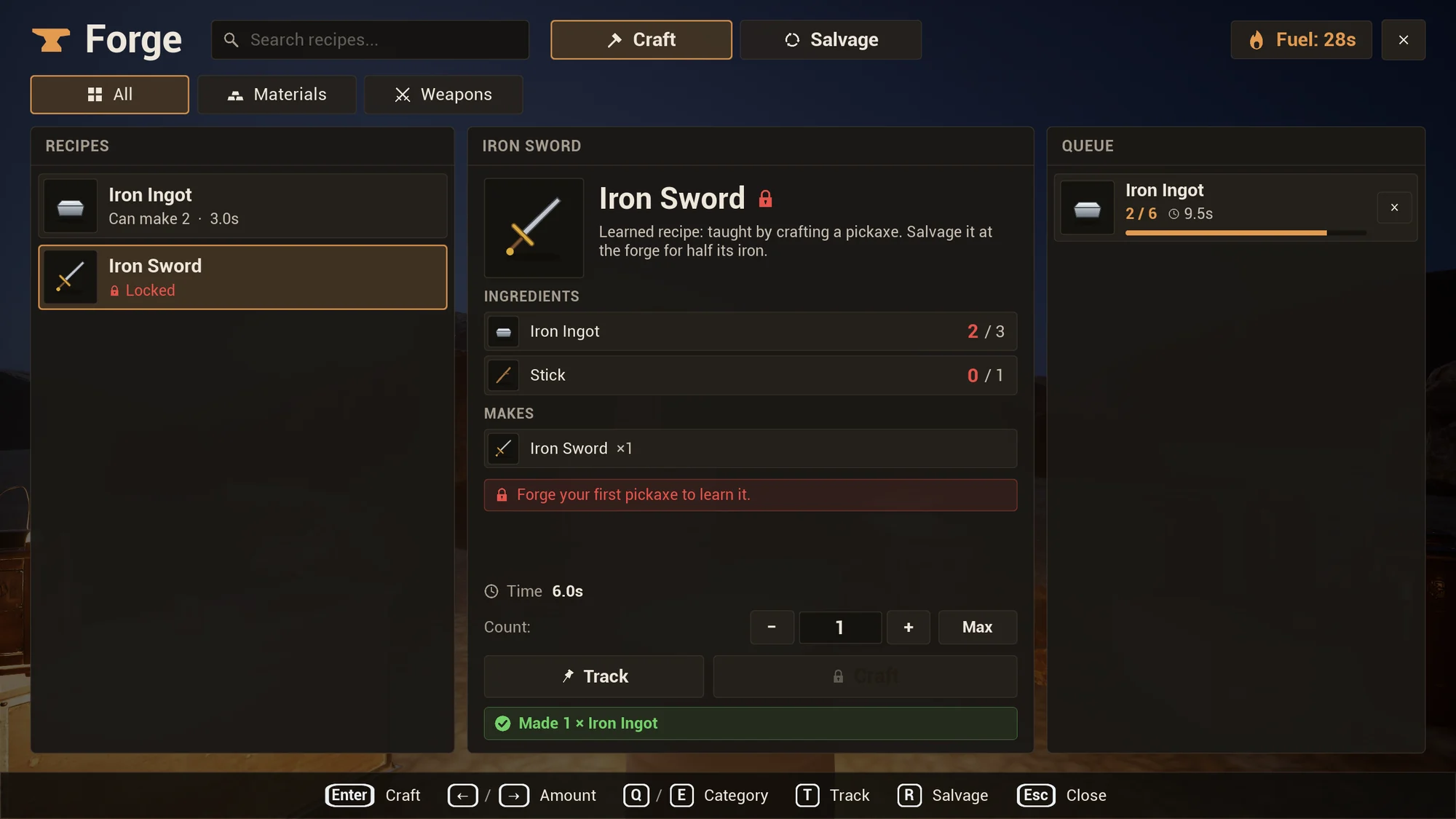
| Show | Lists them locked, after the known ones: name, ingredients and a padlock |
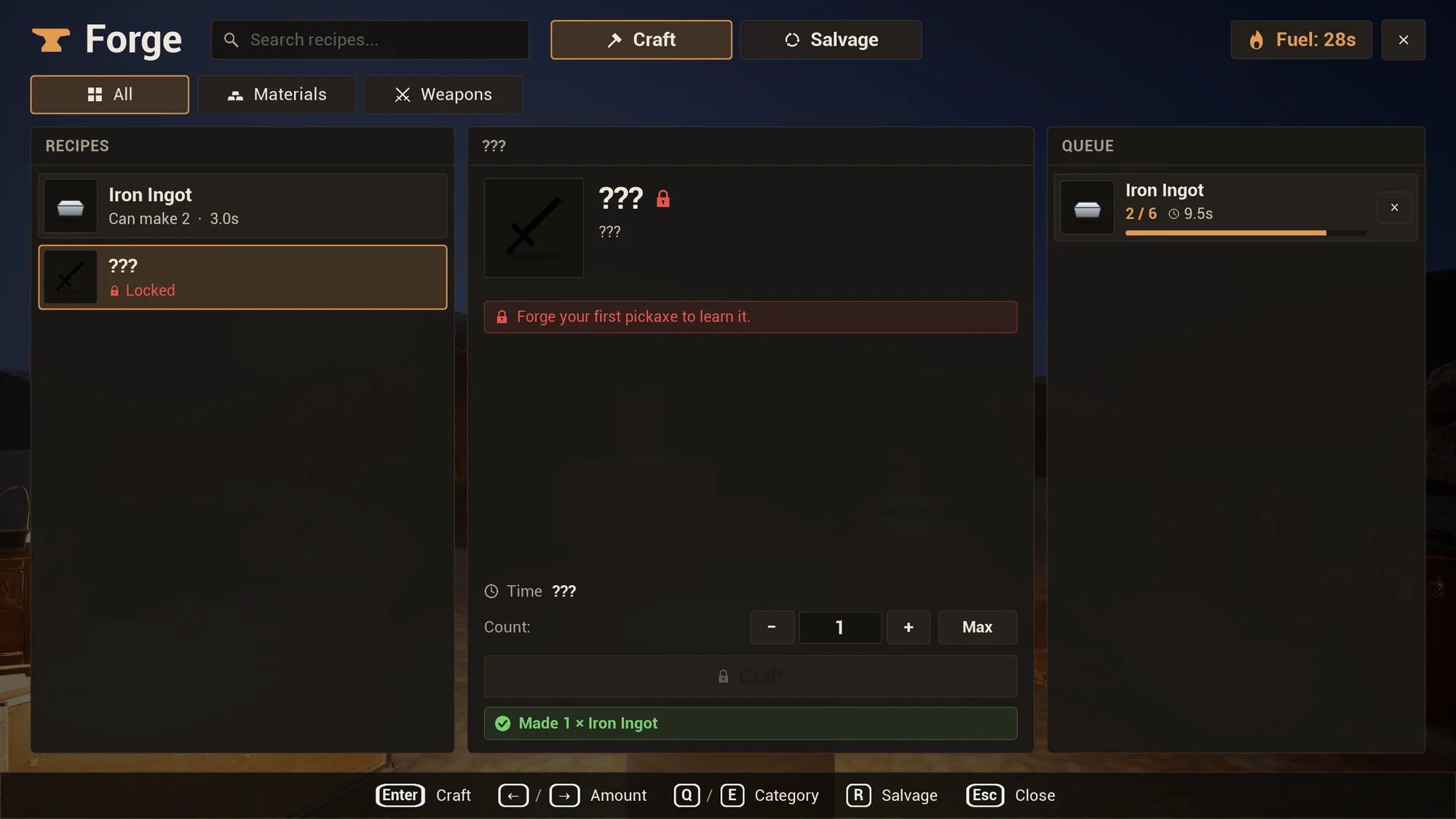
| Show As Unknown | Lists them as “???” with a dark icon (Unknown Icon Tint). They are not found by search and can’t be tracked. |
A locked recipe’s details show LockedIcon next to the name and LockedBox with UnlockHintText: the recipe’s Unlock Hint, or the menu’s Learned Hint Text (“Learn this recipe to craft it.”) or Discovered Hint Text (“Carry every ingredient once to discover it.”). The craft button stays locked, and the status says “You do not know this recipe yet.”. See Unlock hints in the menu.
Salvage mode
Section titled “Salvage mode”The salvage mode appears where a recipe can be salvaged (Allow Salvage): CraftModeButton and SalvageModeButton show, and the mode switch key works. It lists the items the crafter has (Salvage Lists Only Held), each with “You have 1 · 3.0s”. The details show what one batch takes (IngredientsTitle “SALVAGE”) and gives back (OutputsTitle “GIVES BACK”), and the craft button says “Salvage”. See Salvage.
HUD tracker
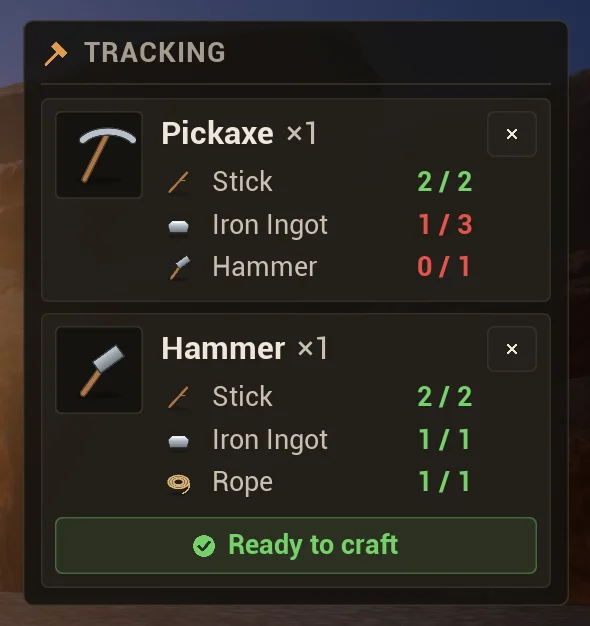
Section titled “HUD tracker”TACraftwrightTrackerWidget shows the crafter’s tracked recipes on the HUD and what is still missing for each. Add WBP_CraftingTracker to the viewport and call Setup with the crafter. Players track recipes with the menu’s TrackButton; see Tracking recipes.
| Name | Type | Shows |
|---|---|---|
TrackedBox |
Panel | Gets one Tracked Recipe Class widget per tracked recipe |
EmptyBox |
Any widget | Shown while nothing is tracked |
| Property | Default | Meaning |
|---|---|---|
| Tracked Recipe Class | None | The widget class for one tracked recipe |
| Stack Class | None | The widget class for the ingredient lines of the entries |
| Refresh Interval | 0.5 s |
Seconds between refreshes (inventories change without events) |
| Hide When Empty | On | Collapses the tracker while nothing is tracked |
| Only Missing | Off | Lists only the ingredients that are still missing |
Setup (Crafter) starts it, Refresh rebuilds it, and On Refreshed runs after every refresh.
TACraftwrightTrackedRecipeWidget shows one tracked recipe:
| Name | Type | Shows |
|---|---|---|
IconImage, NameText |
Image, Text Block | The recipe’s icon and name |
CountText |
Text Block | The tracked units: “×1” (Count Format) |
IngredientsBox |
Panel | One stack line per ingredient, with “have / need” for the tracked units |
ReadyBox |
Any widget | Shown when every ingredient is there; the example says “Ready to craft” |
UntrackButton |
Button | Stops tracking the recipe |
Set Tracked Recipe fills it, and On Tracked Recipe Set (Recipe, Count, Ready) runs after every update.
The recipe entry
Section titled “The recipe entry”TACraftwrightRecipeEntryWidget shows one recipe in the list. Clicking Button selects the recipe.
| Name | Type | Shows |
|---|---|---|
Button |
Button | Selects the recipe |
IconImage |
Image | The recipe’s icon; tinted with Unknown Icon Tint for recipes shown as “???” |
NameText |
Text Block | The recipe’s name, or “???” |
InfoText |
Text Block | “Can make 5 · 2.0s” in Can Make Color, “Missing ingredients · 2.0s” in Missing Color, “Locked” in Locked Color, or in salvage mode “You have 1 · 3.0s”. The time is the recipe’s Craft Time (its Salvage Time in salvage mode), or “instant”. |
SelectedMarker |
Any widget | Shown while the entry is selected |
LockedMarker |
Any widget | Shown on locked recipes (a padlock) |
TrackedMarker |
Any widget | Shown on tracked recipes (a pin) |
SalvageMarker |
Any widget | Shown in salvage mode |
Entries that can’t be made now are drawn at 80 % opacity unless selected. On Recipe Set (Recipe, Max Count, Selected) runs after every update, for your own styling; Is Locked, Is Salvage and Is Tracked tell you the entry’s state there.
The stack line
Section titled “The stack line”TACraftwrightStackWidget shows one ingredient or output.
| Name | Type | Shows |
|---|---|---|
IconImage |
Image | The item’s icon. For a tag ingredient, the icon of a matching item the crafter holds. |
NameText |
Text Block | The item’s name; “Any Wood” for a tag ingredient (the last part of the tag); “Hammer (tool)” for tools |
CountText |
Text Block | Ingredients: “have / need”, in Enough Color or Missing Color. Outputs: “×3” or “×1 (25%)”. |
HaveText, NeedText |
Text Block | Ingredients only: the amount held, coloured, and “/ 3”; so only the amount held is coloured (“1 / 3”) |
NoteText |
Text Block | “Tools are not used up.” for tools; hidden otherwise |
TagMarker |
Any widget | Shown for tag ingredients (“any item with a tag”) |
On Stack Set (Item, Need, Have, Tool) runs after every update. Set Stack fills a line by hand if you use the class elsewhere, and Set Ingredient fills it from the crafter’s Get Ingredient Status.
The job entry
Section titled “The job entry”TACraftwrightJobEntryWidget shows one job in a queue.
| Name | Type | Shows |
|---|---|---|
IconImage |
Image | The recipe’s icon |
NameText |
Text Block | The recipe’s name; “Salvage Pickaxe” for salvage jobs |
CountText |
Text Block | Units done / ordered, for example “1 / 3” |
TimeText |
Text Block | “Waiting” for queued jobs, “Paused: no fuel or power” for paused ones, else the time left |
ProgressBar |
Progress Bar | Progress of the unit being made, smooth on clients |
CancelButton |
Button | Cancels the job through the crafter’s Request Cancel |
SalvageMarker |
Any widget | Shown on salvage jobs |
WorkingMarker, WaitingMarker |
Any widget | Shown on the working job and on waiting ones (a clock, an hourglass) |
On Job Set (Job) runs after every update; Update Progress refreshes the bar and time and is called every frame by the menu.
Every text the widgets write is a property in the Craftwright | Texts category of its widget, so you change and localize it in the Widget Blueprint. {…} parts are filled in by the widget.
| Widget | Property | Default |
|---|---|---|
| Menu | Hand Title Text | Crafting |
| Menu | Recipes Title Text, Salvage List Title Text | RECIPES, SALVAGEABLE ITEMS |
| Menu | All Category Text | All |
| Menu | Craft Label, Salvage Label | Craft, Salvage |
| Menu | Track Label, Untrack Label | Track, Untrack |
| Menu | Ingredients Title Text, Outputs Title Text | INGREDIENTS, MAKES |
| Menu | Salvage Takes Title Text, Salvage Gives Title Text | SALVAGE, GIVES BACK |
| Menu | Unknown Name Text | ??? |
| Menu | Instant Text | Instant |
| Menu | No Match Format | No recipe matches "{Search}". |
| Menu | Nothing To Salvage Text | You have nothing to salvage here. |
| Menu | Bonus Format | {Chance} chance of a lucky craft: +{Items} |
| Menu | Learned Hint Text | Learn this recipe to craft it. |
| Menu | Discovered Hint Text | Carry every ingredient once to discover it. |
| Menu | Queued Format | Queued {Count} × {Name} |
| Menu | Salvage Queued Format | Salvaging {Count} × {Name} |
| Menu | Made Format | Made {Count} × {Item} |
| Menu | Failed Format | {Name} failed. |
| Menu | Lucky Format | Lucky! +{Count} × {Item} |
| Menu | Salvaged Format | Salvaged: {Items}, for example Salvaged: 1 × Stick, 1 × Iron Ingot |
| Menu | Tracked Format | Tracking {Name} |
| Menu | Tray Format | {Count} finished item(s) waiting |
| Menu | Fuel Format | Fuel: {Time} |
| Menu | Key Hint Format, Key Hint Separator | {Key} {Action}, five spaces |
| Menu | Amount Action Text, Category Action Text, Close Action Text, Collect Action Text | Amount, Category, Close, Collect |
| Recipe entry | Can Make Format, Missing Format | Can make {Count} · {Time}, Missing ingredients · {Time} |
| Recipe entry | Can Salvage Format | You have {Count} · {Time} |
| Recipe entry | Locked Text, Unknown Name, Instant Text | Locked, ???, instant |
| Stack | Tool Note, Tool Name Format | Tools are not used up., {Name} (tool) |
| Stack | Any Tag Format | Any {Tag} |
| Stack | Have Need Format, Need Format | {Have} / {Need}, / {Need} |
| Stack | Output Format, Chance Format | ×{Count}, ×{Count} ({Chance}) |
| Job | Count Format | {Done} / {Total} |
| Job | Salvage Name Format | Salvage {Name} |
| Job | Waiting Text, Paused Text | Waiting, Paused: no fuel or power |
| Tracked recipe | Count Format | ×{Count} |
The reasons a craft is refused come from the crafter, for example “Not enough ingredients.”, “You do not know this recipe yet.”, “Not enough items to salvage.” and “This cannot be salvaged.”.
CommonUI
Section titled “CommonUI”Docs/CommonUI in the plugin folder has a template for an activatable widget that hosts the menu in a CommonUI stack: back action, focus and input mode. It turns off the menu’s Remove On Close and Focus On Open, so the stack shows and hides the menu. It is an untested template, like the Lyra adapter; copy it into a project that uses CommonUI.