
Machine translation
Machine translation is optional. It fills missing texts of one language with DeepL, or any OpenAI-compatible chat endpoint: OpenAI, Azure OpenAI, OpenRouter, or a model on your own PC with Ollama or LM Studio. You use your own account and key; Dragoman has no service of its own.
It never touches a text that already has a translation: translated, changed and machine texts are not sent. Each text goes with what a translator would need, every answer is checked before it is written, and the results wait on the Review page until somebody accepts them.
The machine translation dialog
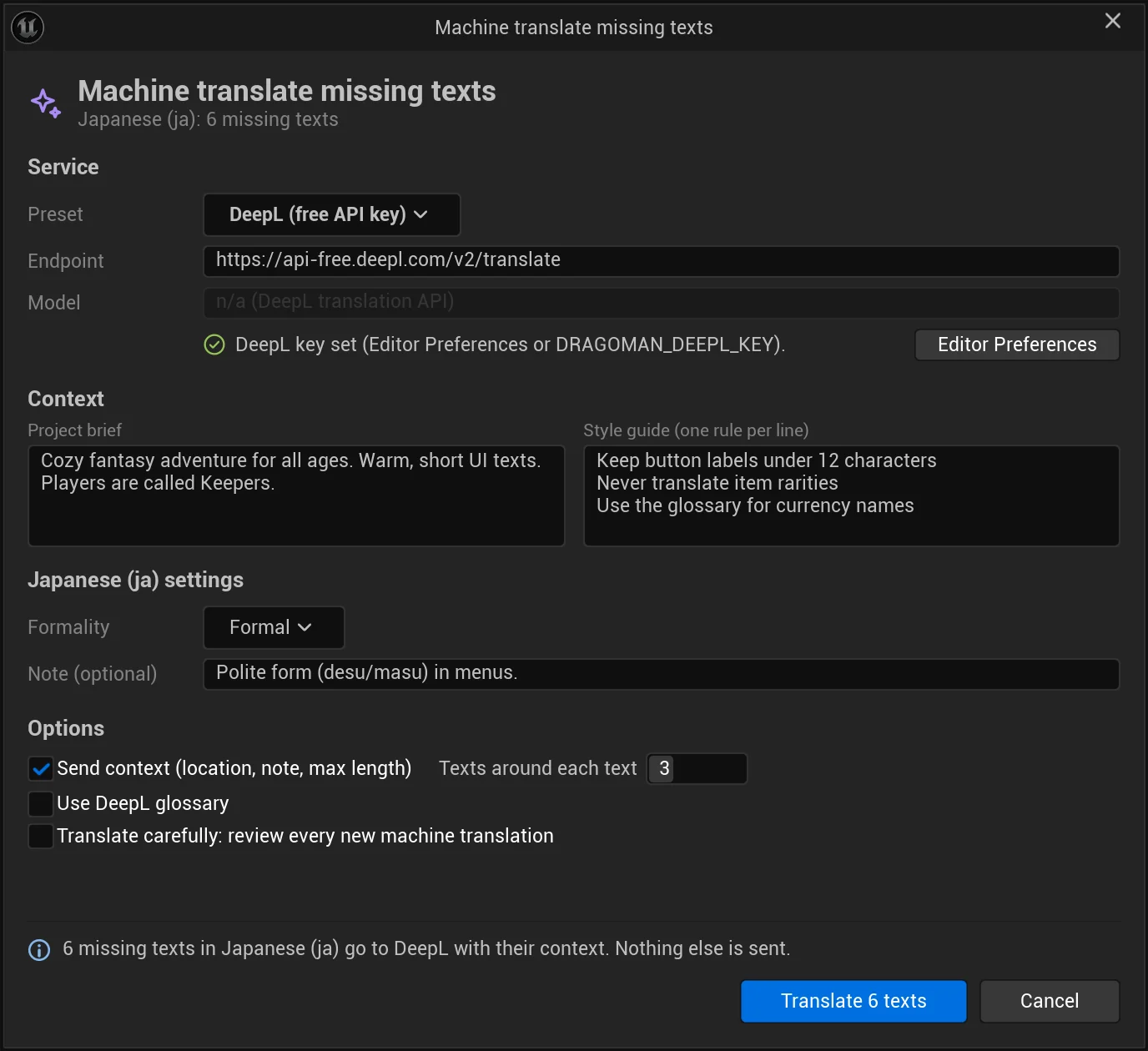
Section titled “The machine translation dialog”Pick a language and choose Tools > Machine translate missing texts…. The dialog has everything the service needs; what you set there is saved to the project settings when the translation starts (Project Settings > Plugins > ta Dragoman > Machine Translation has the same settings, see Settings). Cancel leaves the settings as they were.
-
Preset fills in the service, the endpoint and a default model. Pick Custom to set the endpoint and model yourself. A model you typed yourself stays when you pick another preset.
Preset Endpoint Model DeepL (free API key) https://api-free.deepl.com/v2/translate(DeepL translation API) DeepL (Pro API key) https://api.deepl.com/v2/translate(DeepL translation API) OpenAI https://api.openai.com/v1/chat/completionsgpt-4.1-miniAzure OpenAI https://YOUR-RESOURCE.openai.azure.com/openai/deployments/YOUR-DEPLOYMENT/chat/completions?api-version=2024-10-21the deployment in the URL OpenRouter https://openrouter.ai/api/v1/chat/completionsopenai/gpt-4.1-miniOllama (local) http://localhost:11434/v1/chat/completionsllama3.1LM Studio (local) http://localhost:1234/v1/chat/completionslocal-modelFor Azure OpenAI, put your resource and deployment names into the endpoint.
-
Under the model, the dialog says whether your key is set. Keys are stored per user and never committed: Editor Preferences > Plugins > ta Dragoman (the dialog’s Editor Preferences button) has the Chat Service API Key, the DeepL API Key, and a Review Service API Key if the review pass uses another service. Local services need no key: “Local service on this computer: no key needed, nothing leaves the PC.” Build machines can use the environment variables
DRAGOMAN_API_KEYandDRAGOMAN_DEEPL_KEY. -
Tell the service about your game. Project brief: genre, audience, tone, names, for example “Cozy farming game for all ages. Warm, short UI texts.” Style guide: one rule per line, for example “Keep button labels under 12 characters”.
-
Set the language: Formality (formal or informal address of the player, Sie/du, vous/tu; Default lets the service decide) and a Note, for example “Use katakana for item names”.
-
Options:
- Send context (location, note, max length) sends each text’s asset and location, translator note and maximum length with it.
- Texts around each text (default 3): texts of the same asset or source file sent along, with their reviewed translations as style examples.
- Use DeepL glossary (DeepL only) makes a DeepL glossary from your glossary terms in your DeepL account and uses it. It is replaced when your glossary changes.
- Translate carefully: review every new machine translation runs the review pass right after the translation (one more request per batch).
The line at the bottom says what will be sent: “6 missing texts in Japanese (ja) go to DeepL with their context. Nothing else is sent.”
Translate the missing texts
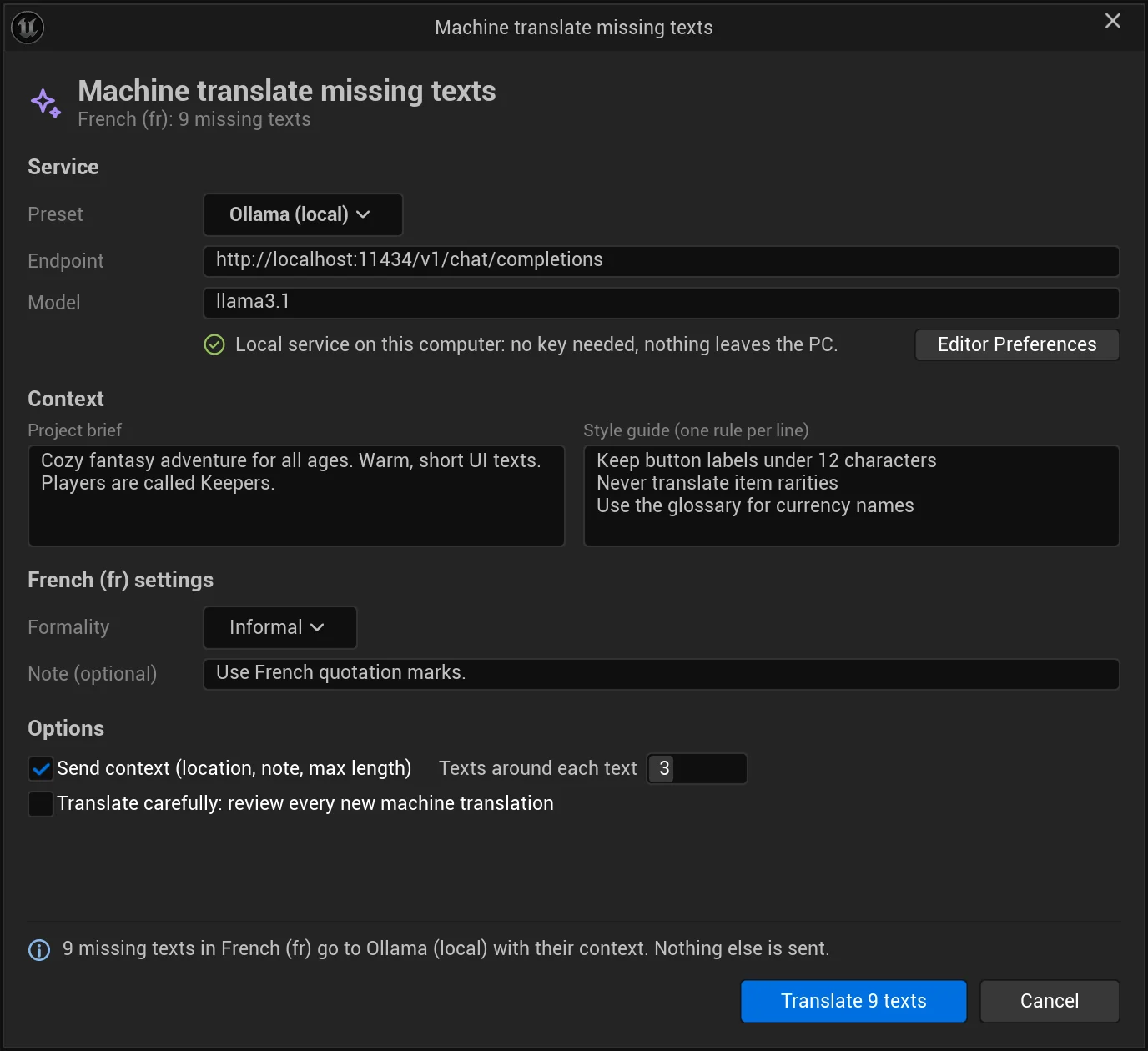
Section titled “Translate the missing texts”Click Translate n texts (Translate 1 text for a single one). The dialog shows the progress (“Translating with DeepL: 2 of 6”), then the review pass if you chose Translate carefully, and finally the result:
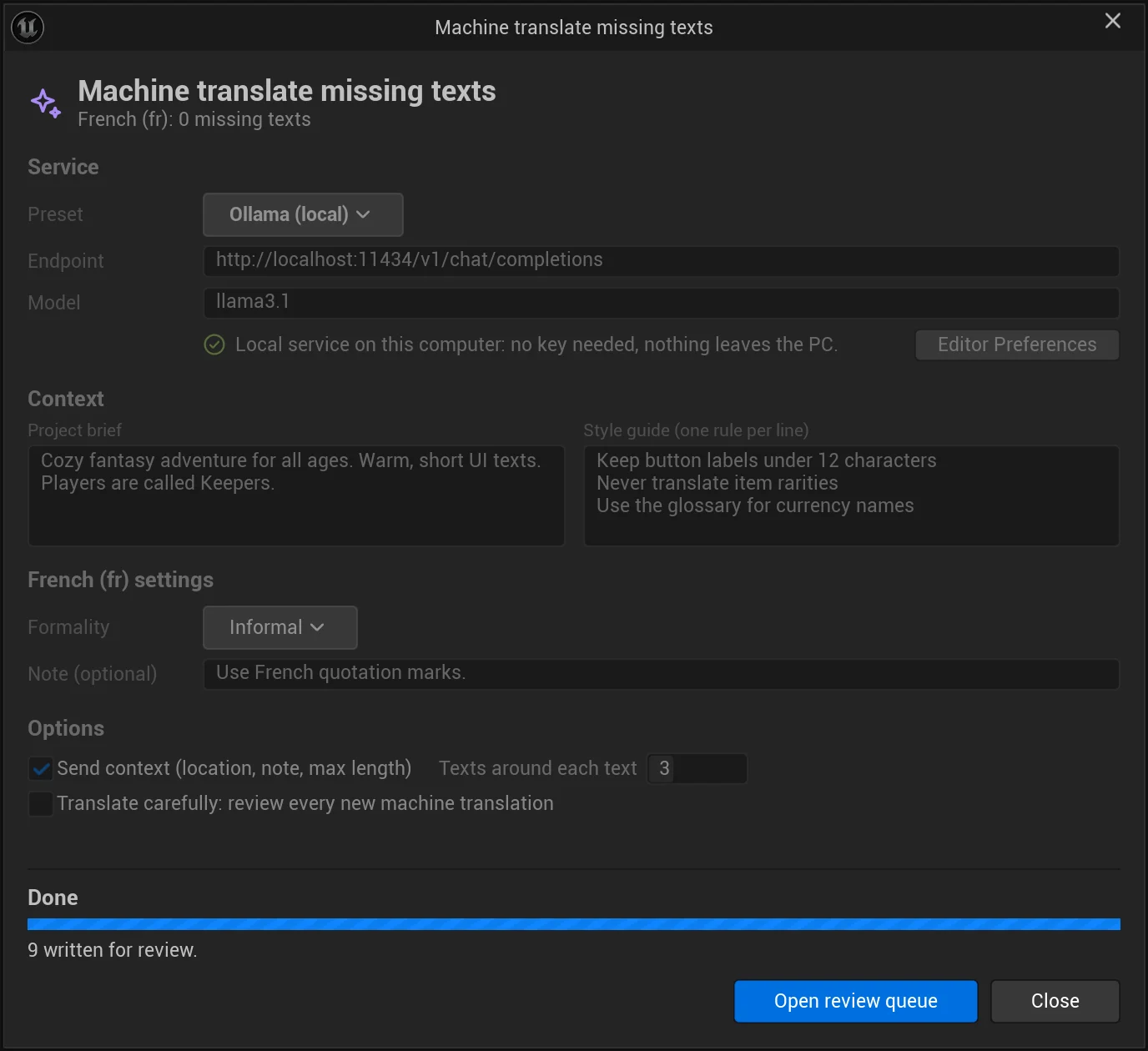
- “9 written for review.” Results are not compiled automatically: click Compile to see them in the editor.
- When answers were dropped: “8 written for review, 1 dropped (broken placeholders, tags or plural forms).”
- With the review pass: “9 written for review. The review pass checked 9.”
- Notes about DeepL’s glossary and custom instructions, when something didn’t work, appear under the result.
Open review queue shows the new machine translations on the Review page. Cancel during the run stops it; what was translated so far is written as machine translations.
The texts go out in batches of Machine Batch Size (default 25). With DeepL, a request stays inside one asset or source file, since DeepL takes one context per request. Busy services (429, 5xx) are retried; a used-up DeepL quota stops with a clear message. Each request waits up to three minutes for an answer.
From Python, call machine_translate("de"); from the command line, add -Machine=de. See Python and Command line & CI.
What is sent
Section titled “What is sent”Only to the services you configure, only when you start a machine translation or a review:
- the missing source texts, each with its location (asset name and property, or source file and line), note, maximum length, up to Neighbor Texts texts around it with their reviewed translations, and the translation memory’s match;
- your project brief, style guide, formality and notes for the language, and the glossary terms the texts use;
- for the review pass, the machine translations with their sources and the same context.
DeepL gets the texts with the brief, notes, locations and nearby texts as context, the style guide as custom instructions (up to 10), the formality, and, with Use DeepL Glossary on, a glossary made from your glossary terms in your DeepL account (replaced when your glossary changes). Nothing else is sent, and nothing goes to tridiART.
DeepL gets the right regional variant where it needs one: en-GB goes out as British English and other English cultures as American English, pt-BR as Brazilian and other Portuguese as European Portuguese, and Chinese as Simplified unless the culture is Traditional (zh-Hant, Taiwan or Hong Kong).
What comes back
Section titled “What comes back”Each answer is checked before it is written:
- The source’s leading and trailing whitespace is put back, since services often trim it.
- Answers with broken placeholders, tags or plural patterns are dropped and not written. The text stays missing.
The accepted translations are written to the target’s archive and marked as machine translations:
- They show with the violet Machine status in the panel, wait on the Review page and count as Machine translation findings. They count towards a language’s coverage.
- Translator packages list them with the status
machine; PO files mark themfuzzyand XLIFF files mark them for review, so a translator can check them. - They never replace a translation somebody made, and they are added to the translation memory only after a review.
The marks and the review pass’s verdicts are kept in Review_<Target>.json in the data folder, so the whole team sees which texts still need a review.
Review queue
Section titled “Review queue”The Review page of the panel lists the machine translations of one language, riskiest first, with the reasons and what each adds to the risk. Translations that a translator’s file marks for review (for example an XLIFF target that needs review) wait here too.
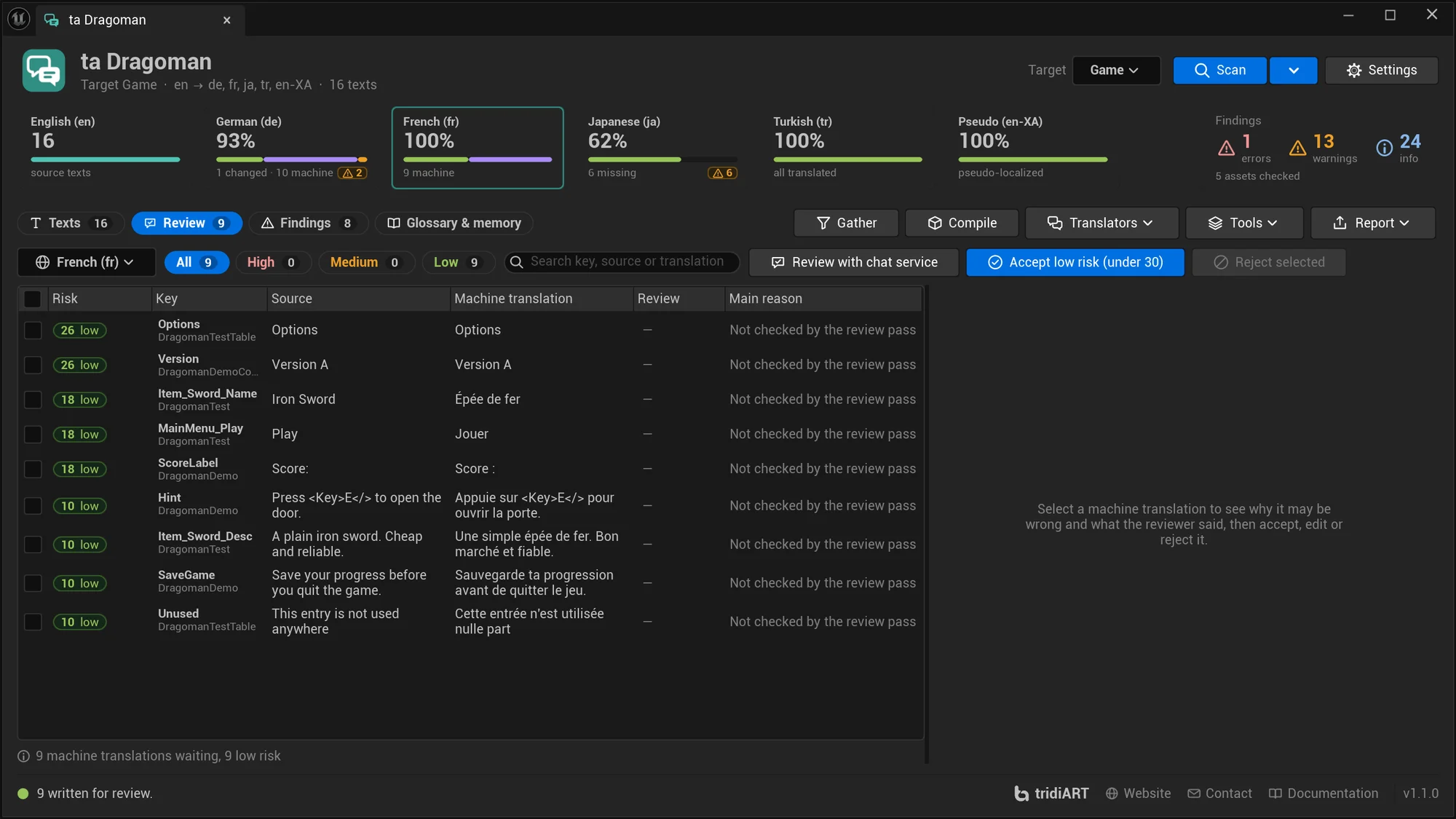
Each machine translation gets a risk from 0 to 100, the sum of its reasons:
| Reason | Adds |
|---|---|
| A finding of the translation, for example a glossary term or a whitespace mismatch | 60 for an error, 25 for a warning, 8 for info |
| The review pass failed it | 45 |
| The review pass has doubts | 20 |
| The review pass found it fine | −15 |
| A review score under 100 | (100 − score) × 0.2, rounded |
| Not checked by the review pass | 10 |
| Plural, gender or ordinal forms in the source | 12 |
| Close to the maximum length (90 % of it or more, not over it) | 10 |
| A short text (one or two words) without a note: the meaning can be ambiguous | 8 |
The level is high from 60, medium from 30 to 59 and low under 30. For example, “Quit to desktop” machine translated as “Zurück zum Desktop” (the note allows 18 characters): the review pass failed it as too literal (45), its score of 35 adds 13, and 18 of 18 characters adds 10, so the risk is 68, high.
Review pass
Section titled “Review pass”The review pass has a chat service check each machine translation against its source, your glossary, the maximum length and the style guide. It gives a verdict (ok, warn or fail), a score from 0 to 100, the issue and, when it has one, a better translation. Nothing is changed automatically: the verdicts sort the review queue, and the suggestion waits for you to use it.
- Review with chat service on the Review page reviews the machine translations already there: the selected ones, or all of them. Dragoman asks first, with the service’s address.
- Translate carefully in the dialog, or the Review Pass setting, reviews every new machine translation right after the translation.
The review pass needs a chat service. It uses the Review Endpoint and Review Model, or the machine translation endpoint and model when they are a chat service. With DeepL as translator, set a Review Endpoint and Review Model for the chat service that reviews. A verdict stays valid as long as the source and the translation are the ones it was given.
Work through the queue
Section titled “Work through the queue”- Accept low risk (under 30) marks every machine translation with a low risk as reviewed, after a question.
- Select a text to see its reasons and the reviewer’s verdict. Use suggestion puts the reviewer’s translation into the box; Accept keeps the translation (with your edit, if you made one), Save edit writes the text in the box, and Reject (text becomes missing again) removes the machine translation.
- Reject selected removes the selected machine translations: the texts become missing again. Translations somebody made are never removed.
From Python: get_review_queue, accept_low_risk, accept_machine, reject_machine, apply_review_suggestions and review_machine_translations; from the command line, -Review=de.
Errors
Section titled “Errors”| Message | Fix |
|---|---|
Machine translation is off. Pick a service in Project Settings > Plugins > ta Dragoman (Machine Preset). |
Pick a preset. |
Set the machine translation endpoint URL in Project Settings > Plugins > ta Dragoman. |
Set the endpoint, or pick a preset. |
Replace YOUR-RESOURCE and YOUR-DEPLOYMENT in the Azure OpenAI endpoint with your resource and deployment names. |
Fill in the Azure OpenAI endpoint. |
Set your DeepL API key in Editor Preferences > Plugins > ta Dragoman (or the DRAGOMAN_DEEPL_KEY environment variable). |
DeepL needs a key. |
Set the model name in Project Settings > Plugins > ta Dragoman. |
Chat services need a model. |
The review pass needs a chat service: set Review Endpoint in Project Settings > Plugins > ta Dragoman (DeepL translates but cannot review). |
Set a Review Endpoint for the review pass. |
Set the review model (or the machine translation model) in Project Settings > Plugins > ta Dragoman. |
Set the Review Model. |
Could not reach the machine translation service. Check the endpoint URL and your connection (a local service must be running). |
The URL is wrong, the service is down or a local server is not running. |
The service answered <code>: <message> |
The service refused the request, for example 401 for a wrong key, or 403 for a DeepL Free key on the Pro endpoint or the other way round. Busy answers (429, 5xx) are retried first. |
The DeepL quota of this API key is used up (456). |
Wait for the next billing period, or use another key. |
The service's answer is not JSON. |
The endpoint is not a translation or chat completions API. |
No missing texts in this language. |
Nothing to translate. Machine translation only fills missing texts. |
Translations from batches that finished before an error are kept.