
Import and export
Craftwright round-trips recipes through spreadsheets. Export the recipes as CSV, balance craft times, ingredients and outputs in a spreadsheet, and import the file again: you see every recipe that will be created or changed before anything is saved.
Export
Section titled “Export”Click Export in the panel after a scan, run the commandlet, or call export_report from Python.
| Panel entry | Writes |
|---|---|
| HTML report | The HTML report, and opens it in your browser |
| CSV tables | The recipes CSV and the items CSV |
| JSON | The JSON report |
| Everything | All four files |
| Open report folder | Opens the Report Directory |
Files are written to the Report Directory (default Saved/Craftwright/Reports in the project folder) and named after the scan’s time:
| File | For |
|---|---|
Craftwright_<date>_<time>.html |
Reading and sharing: summary cards (recipes, items, raw materials, recipe books, station types, errors, warnings, suggestions), the findings, and filterable recipe and item tables; a recipe’s outputs show lucky and salvage chips. One file, light and dark, no server or internet connection needed. |
Craftwright_<date>_<time>_recipes.csv |
Spreadsheets: one row per recipe, in the columns the import reads, plus Books, Errors, Warnings and Suggestions. |
Craftwright_<date>_<time>_items.csv |
Spreadsheets: one row per item with Item, Path, DisplayName, Tags, MaxStack, Icon, MadeBy, UsedIn, RawMaterial, Errors, Warnings and Suggestions. |
Craftwright_<date>_<time>.json |
Tools and CI: the whole report. Its recipes array can be imported again. |
For example Craftwright_20261013_101500.html. CSV files are UTF-8 without BOM, with , between cells; cells with commas, semicolons, quotes or line breaks are quoted. Numbers use a dot as decimal separator.
Import
Section titled “Import”-
Click Import in the panel and pick a
.csvor.jsonfile. -
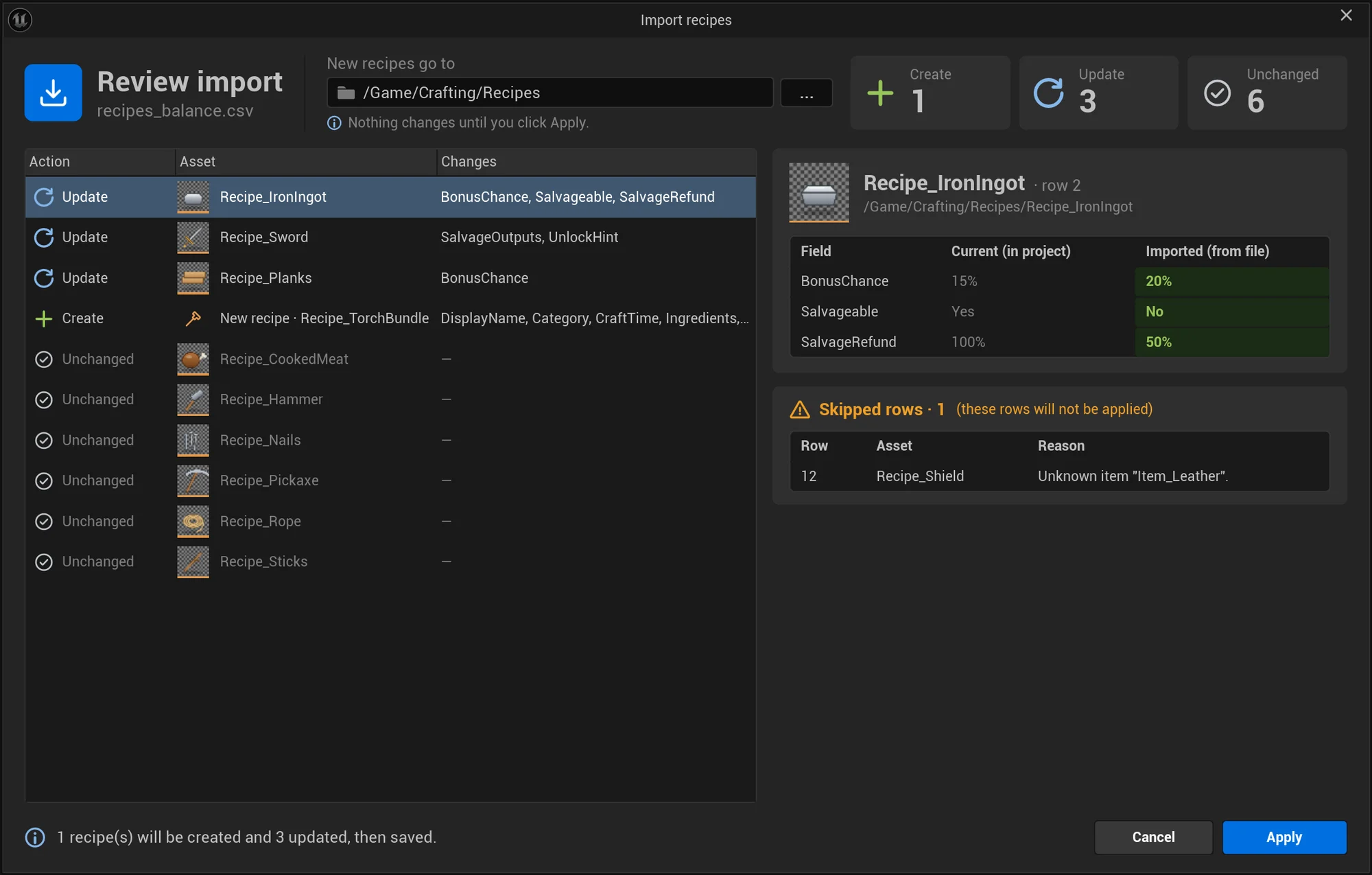
The Review import window shows what the file would do, without changing anything (“Nothing changes until you click Apply.”):
- the file’s name, and the folder new recipes go to (New recipes go to). … picks another folder: the review is made again for it, and Apply uses it;
- how many recipes it would Create, Update and leave Unchanged;
- every recipe of the file with its Action, Asset and Changes: the updates first, then the new recipes (“New recipe · Recipe_TorchBundle”), then the unchanged ones, dimmed;
- for the selected recipe, its row in the file (“Recipe_IronIngot · row 2”), its path, and each changed field with its Current (in project) and Imported (from file) value. An unchanged recipe says “No changes: the file has the same values as this recipe.”;
- Skipped rows, with the Row, Asset and Reason of each row that can’t be imported; these rows won’t be applied.
-
Click Apply to create and update the recipes and save them (“1 recipe(s) will be created and 3 updated, then saved.”), or Cancel. When nothing would change, the window says “There is nothing to apply.” and the button reads Close.
An editor notification then says “Imported recipes: N created, N updated, N skipped.”, and the panel scans again. An applied import is recorded as one transaction (Import Recipes) in the editor’s undo history.
From scripts and CI, import_recipes in Python and -Import in the commandlet do the same, with a dry run option that only reports.
How rows find their recipe
Section titled “How rows find their recipe”- A row with a Path updates the recipe at that path, or creates it there when it doesn’t exist.
- A row without a Path looks for a recipe with the name in Recipe in the New Recipe Folder (default
/Game/Craftwright/Recipes), and creates it there when there is none.
So keep the Path column when your recipes live in other folders; the exported recipes CSV has it. Without it, a row for Recipe_Planks that lives in /Game/Crafting creates a second Recipe_Planks in the New Recipe Folder.
A path that points to an asset that isn’t a Craftwright recipe is skipped.
Missing columns and empty cells
Section titled “Missing columns and empty cells”Only the columns in the file are imported, and an empty cell keeps the recipe’s current value. A sheet with just Recipe, Path and CraftTime rebalances craft times and leaves everything else as it is. New recipes get the defaults for everything the row doesn’t set.
The other side of this rule: a cell can’t clear a value. The exception is a -, which empties BonusOutputs, SalvageOutputs and UnlockHint. To turn a station recipe into a hand recipe, or to remove a category, edit the recipe asset.
CSV format
Section titled “CSV format”The first row is the header. Column names are matched without case and spaces, in any order; columns the import doesn’t know (such as Books or Errors from an export) are ignored. A Recipe (or Name) or a Path column is required.
| Column | Example | Meaning |
|---|---|---|
| Recipe | Recipe_Planks |
The recipe’s asset name. Optional when Path is given. |
| Path | /Game/Crafting/Recipe_Planks |
The recipe’s package or object path. |
| DisplayName | Planks |
Display Name |
| Category | Recipe.Category.Materials |
Category, a gameplay tag |
| Stations | Station.Workbench; Station.Sawmill |
Stations, gameplay tags separated by ; |
| CraftTime | 2 |
Craft Time in seconds; 0 = instant |
| MaxBatch | 5 |
Max Batch; 0 = no limit |
| Unlock | Learned |
AlwaysKnown (also Always or Always Known), Learned or Discovered |
| FailureChance | 0.1 |
Failure Chance, a fraction from 0 to 1 (0.1 = 10 %) |
| FailureRefund | 0.5 |
Failure Refund, from 0 to 1 |
| CancelRefund | 1 |
Cancel Refund, from 0 to 1 |
| Ingredients | 2 Item_Stick; 1 #Item.Material.Wood; 1 Item_Hammer (tool) |
Ingredients, see below |
| Outputs | 3 Item_Plank; 1 Item_Sawdust @25% |
Outputs, see below |
| BonusChance | 0.1 |
Bonus Chance, from 0 to 1 |
| BonusOutputs | 1 Item_Sawdust |
Bonus Outputs, written like outputs; - empties them |
| Salvageable | yes |
Salvageable: yes or no (also true or false, 1 or 0) |
| SalvageRefund | 0.5 |
Salvage Refund, from 0 to 1 |
| SalvageTime | 3 |
Salvage Time in seconds; 0 = instant |
| SalvageOutputs | 2 Item_Scrap @50% |
Salvage Outputs, written like outputs; - empties them |
| UnlockHint | Taught by the blacksmith |
Unlock Hint; - empties it |
Gameplay tags must exist in the project (Project Settings > Gameplay Tags). Times below 0 and batches below 0 become 0; chances and refunds are clamped to 0 .. 1.
Ingredients and outputs
Section titled “Ingredients and outputs”A cell lists entries separated by ; (line breaks inside a quoted cell work too). Each entry is:
[count] item-or-tag [(tool)] [@chance]| Part | Syntax | Notes |
|---|---|---|
| Count | 2 Item_Plank, 2x Item_Plank, 2 x Item_Plank |
Optional; no number means 1. Must be at least 1. |
| Item | Item_Plank or /Game/Crafting/Items/Item_Plank |
The item’s asset name (not its display name), matched without case, or its full path. When several items share the name, use the path. |
| Tag (ingredients) | #Item.Material.Wood or any Item.Material.Wood |
A tag ingredient: any item with this tag. Outputs, bonus outputs and salvage outputs can’t be tags. |
| Tool (ingredients) | 1 Item_Hammer (tool) |
A tool: needed, not used up (Consumed off). |
| Chance (outputs) | @25% or @0.25 |
The output’s Chance. |
The importer compares ingredients and outputs as whole lists: when the cell differs from the recipe in any entry, the whole list is replaced.
Example
Section titled “Example”The example map’s recipes were created from this table (shortened):
Recipe,DisplayName,Category,Stations,CraftTime,MaxBatch,Unlock,FailureChance,FailureRefund,Ingredients,Outputs,BonusChance,Salvageable,SalvageRefund,SalvageTime,UnlockHintRecipe_Sticks,Sticks,Craftwright.Example.Category.Materials,,1,0,AlwaysKnown,0,0,1 #Craftwright.Example.Material.Wood,4 Item_Stick,0,no,0.5,0,Recipe_Rope,Rope,Craftwright.Example.Category.Materials,,2,0,Discovered,0,0,3 Item_Fiber,1 Item_Rope,0,no,0.5,0,Carry plant fiber to discover it.Recipe_Torch,Torch,Craftwright.Example.Category.Tools,,0,0,AlwaysKnown,0,0,"1 Item_Stick; 1 Item_Coal",2 Item_Torch,0,no,0.5,0,Recipe_Planks,Planks,Craftwright.Example.Category.Materials,Craftwright.Example.Station.Workbench,2,0,AlwaysKnown,0,0,1 #Craftwright.Example.Material.Wood,3 Item_Plank,0.1,no,0.5,0,Recipe_Pickaxe,Pickaxe,Craftwright.Example.Category.Tools,Craftwright.Example.Station.Workbench,5,1,AlwaysKnown,0,0,"2 Item_Stick; 3 Item_IronIngot; 1 Item_Hammer (tool)",1 Item_Pickaxe,0,yes,0.5,3,Recipe_CookedMeat,Cooked Meat,Craftwright.Example.Category.Food,Craftwright.Example.Station.Campfire,4,0,AlwaysKnown,0.1,0,1 Item_RawMeat,1 Item_CookedMeat,0,no,0.5,0,A partial sheet that only changes craft times:
Recipe,Path,CraftTimeRecipe_Planks,/Game/Crafting/Recipes/Recipe_Planks,1.5Recipe_IronIngot,/Game/Crafting/Recipes/Recipe_IronIngot,4JSON format
Section titled “JSON format”A JSON import reads the format of the JSON report: an object with a recipes array. Export JSON, edit the recipes and import the file again.
{ "recipes": [ { "name": "Recipe_Planks", "path": "/Game/Crafting/Recipes/Recipe_Planks.Recipe_Planks", "displayName": "Planks", "category": "Recipe.Category.Materials", "stations": ["Station.Workbench"], "craftTime": 2, "maxBatch": 0, "unlock": "AlwaysKnown", "failureChance": 0, "failureRefund": 0.5, "cancelRefund": 1, "ingredients": [ { "tag": "Item.Material.Wood", "count": 1 } ], "outputs": [ { "item": "Item_Plank", "count": 3, "chance": 1 } ], "bonusChance": 0.1, "bSalvageable": false, "salvageRefund": 0.5, "salvageTime": 0 } ]}- Ingredients and outputs have
item(asset name or path),itemPath,tag,count,bTool(ingredients) andchance(outputs).itemPathwins overitem; an entry with only atagis a tag ingredient.bonusOutputsandsalvageOutputsare written likeoutputs. displayName,category,stations,unlock,ingredients,outputs,bonusOutputs,salvageOutputsandunlockHintare applied when they are set and not empty, so an empty one keeps the recipe’s value.- Numbers and switches (
craftTime,maxBatch,failureChance,failureRefund,cancelRefund,bonusChance,bSalvageable,salvageRefundandsalvageTime) are set when the recipe in the file has them, so older files keep newer fields. - Errors refer to the recipe’s position in the array (1 is the first).
Errors
Section titled “Errors”Rows with errors are skipped and listed; the other rows are still imported. In the commandlet, any error makes the run return exit code 2, also after the other rows were applied.
| Message | Cause |
|---|---|
The file is empty. |
The CSV has no rows. |
The first row must be a header with a Recipe or Path column. |
No Recipe, Name or Path column. |
Not a valid ta Craftwright JSON file (expects an object with a "recipes" array). |
The JSON can’t be read. |
Cannot read <file>. |
The file doesn’t exist or can’t be opened. |
Line <n> (<recipe>): <reason> |
A row was skipped, with one of the reasons below. Line 1 is the header. |
| Reason | Cause |
|---|---|
Needs a Recipe name or a Path. |
Both are empty. |
<column> "<value>" is not a number. |
CraftTime, FailureChance, FailureRefund, CancelRefund, BonusChance, SalvageRefund or SalvageTime isn’t a number. |
Salvageable "<value>" must be yes or no. |
Unknown Salvageable value. |
Unlock must be AlwaysKnown, Learned or Discovered, not "<value>". |
Unknown Unlock. |
Unknown gameplay tag "<tag>" (add it in Project Settings > Gameplay Tags). |
A category, station or ingredient tag doesn’t exist. |
Unknown item "<name>". |
No item has that asset name. |
Several items are called "<name>"; use the full path. |
The name is ambiguous. |
Item "<path>" not found. |
The path doesn’t point to a Craftwright item. |
"<entry>": the count must be at least 1. |
A count of 0. |
"<entry>": bad chance after @. |
The chance isn’t a number. |
An entry has a count but no item. |
For example 2 alone. |
Outputs need an item, not a tag (#<tag>). |
An output written as a tag. Bonus and salvage outputs say Bonus outputs or Salvage outputs. |
<path> is not a Craftwright recipe. |
The path points to another asset type. |
A spreadsheet round trip
Section titled “A spreadsheet round trip”-
Scan the project, then Export > CSV tables.
-
Open
Craftwright_<date>_<time>_recipes.csvin a spreadsheet. Change craft times, counts, chances or refunds. Delete columns and rows you don’t want to touch. -
Save it as CSV (UTF-8, comma-separated).
-
Import it, check the review, and click Apply.
-
Commit the changed recipe assets.