
Editor panel
Open the panel from Tools > ta Dragoman, in the tridiART section of the Tools menu. It opens as a tab you can dock anywhere.
Before the first scan
Section titled “Before the first scan”The panel shows what Dragoman does and a Scan button, with the target it will check below: “Localization target: Game · change it in Settings”. Pick another target in the Target menu of the header, or in Project Settings > Plugins > ta Dragoman.
The header
Section titled “The header”The header shows the target, its native language, the languages it is translated to and the number of texts, for example “Target Game · en → de, fr, ja, tr, en-XA · 16 texts”. The publisher name is shown once, in the footer. On the right:
- Target: the localization target Dragoman checks. The menu lists the project’s targets; picking another one scans it. Repair gather setup… at the bottom of the menu finds and fixes what makes Gather fail or keeps translations out of the game, and creates a target when the project has none. See Repair gather setup.
- Scan checks every translation of the target, and Blueprints, widgets and tables for hardcoded text.
- The arrow next to Scan has more ways to scan:
- Scan everything: translations, setup and assets (Blueprints, widgets, tables).
- Translations only (fast): checks the translations again and keeps the asset findings of the last full scan.
- Gather, then scan: runs Unreal’s Gather Text first, so new and changed texts are included.
- Settings opens Project Settings > Plugins > ta Dragoman: target, checks, fonts, pseudo-localization, machine translation and files.
When the asset checks run, a progress dialog shows each asset as it is checked. You can cancel it. Every scan also adds the current translations to the translation memory.
Language cards
Section titled “Language cards”After a scan, each language of the target has a card, the native language first and the pseudo language last:
- The big number is the coverage: translated and machine-translated texts out of all texts. Changed texts don’t count. The native card shows the number of texts instead.
- The bar shows translated texts in green, machine translations in violet and changed texts in amber; the empty part is missing.
- The line below counts what is left, for example “1 changed · 10 machine”, or says “all translated”.
- A badge at the end of that line shows the number of errors and warnings, red when there is an error.
- Hover a card for all counts and the number of source words still to translate.
Click a card to show that language on the Texts page.
Next to the cards, the Findings tile counts errors, warnings and info; click a count to see those findings. Below it, the panel says how many assets were checked, or “assets not checked”.
The page bar
Section titled “The page bar”| Tab | Shows |
|---|---|
| Texts | Every text of the target with its translation in one language. |
| Review | The machine translations of one language, riskiest first. |
| Findings | Everything the checks found. |
| Glossary & memory | The glossary, notes, translation memory and data folder. |
On the right of the page bar:
- Gather runs Unreal’s Gather Text for the target in its own process (collects new and changed texts), in the Gather window. The current translations are saved to the memory first.
- Compile builds the
.locresfiles of every language, so the game and the editor preview show the current translations. It runs inside the editor, without a separate process, and the editor shows the new text right away. - Translators, Tools and Report open menus.
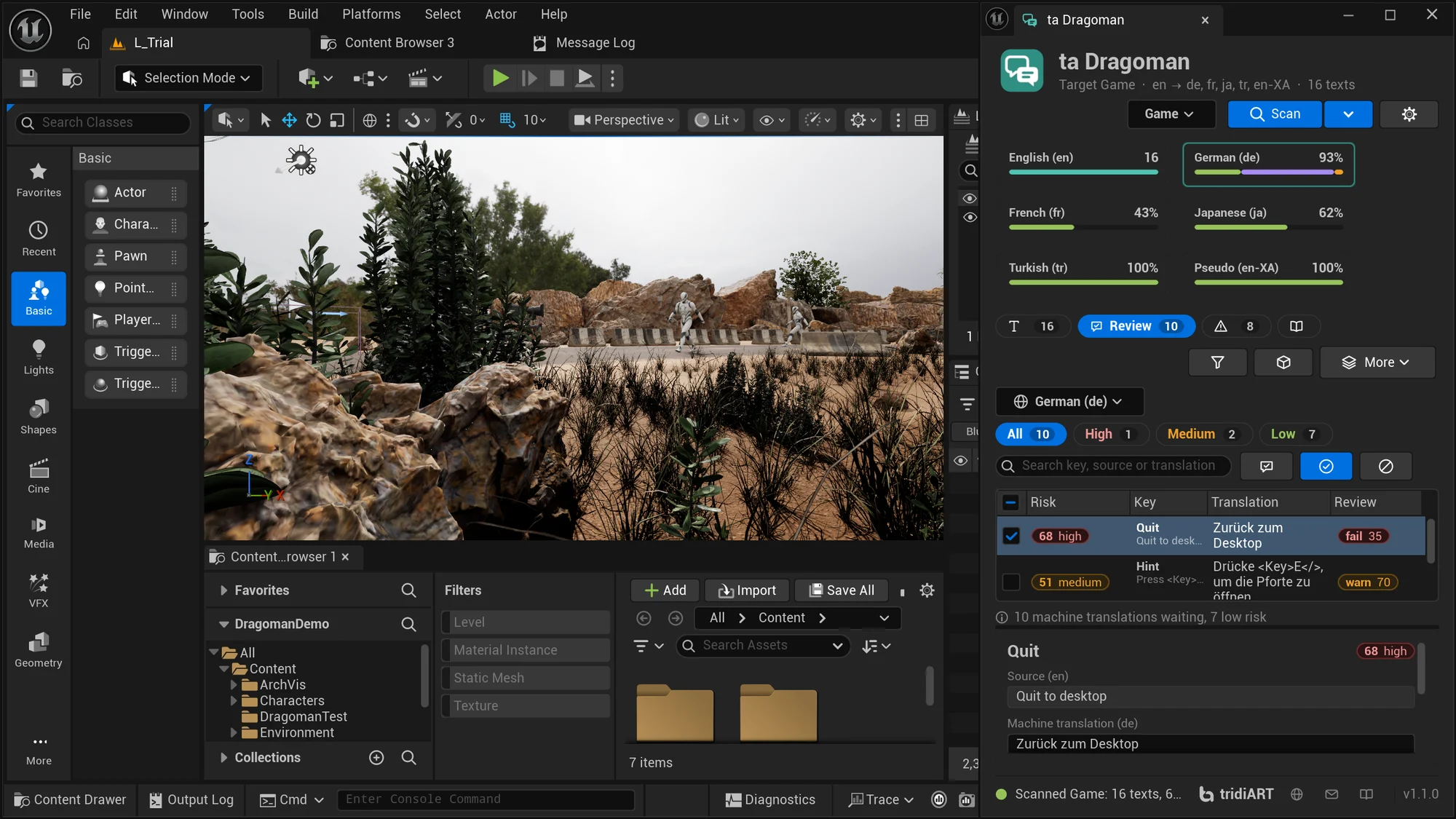
Docked narrow
Section titled “Docked narrow”Docked next to the viewport, narrower than about 900 pixels, the panel switches to a narrow layout:
- The header’s controls move to their own line; Settings shows only its gear.
- The language cards wrap into two columns or so, each with its name, its number and the bar. The counts are in the card’s tooltip, and the findings counts on the Findings tab.
- Only the open page tab keeps its name; the others show their icon and count, with the name in the tooltip.
- Gather and Compile show their icons, and Translators, Tools and Report are in one More menu.
- The details go under the lists, and the buttons of the Review page show their icons only. The review list keeps the risk, the key with the source under it, the translation and the review.
Texts page
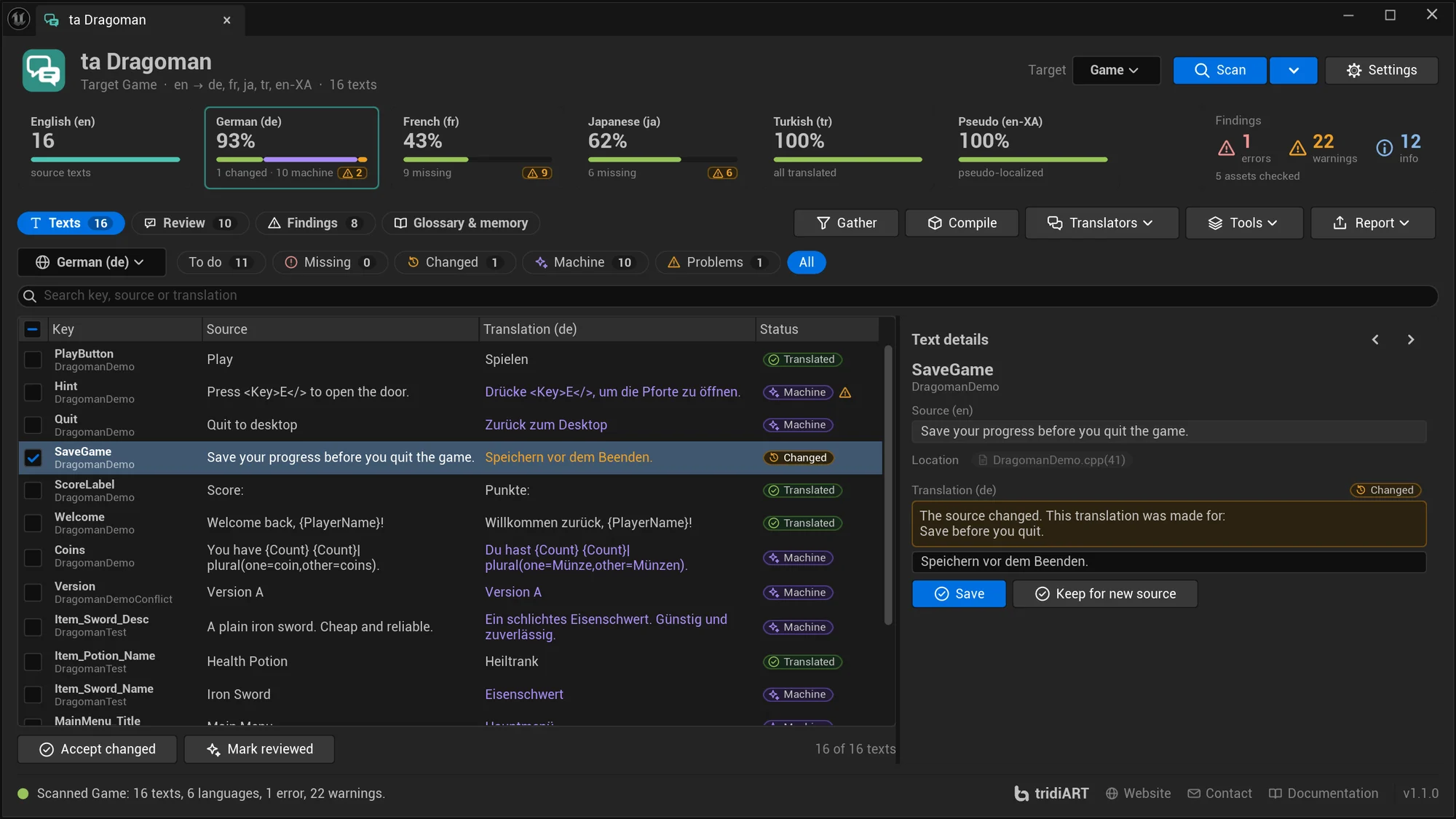
Section titled “Texts page”The Texts page lists the target’s texts with their translation in the language picked in the language box (or by clicking a card).
Filters and search
Section titled “Filters and search”| Filter | Shows |
|---|---|
| To do (default) | Missing, changed and machine texts. |
| Missing | Texts without a translation. |
| Changed | Texts whose source changed after they were translated (“stale”). |
| Machine | Machine translations nobody has reviewed. |
| Problems | Translations with a warning or an error: broken placeholders, patterns or tags, whitespace, length, glyphs or glossary terms. |
| All | Every text. |
The search box finds text in the key, the namespace, the source and the translation, ignoring case.
Columns
Section titled “Columns”| Column | Content |
|---|---|
| Checkbox | Select texts for Accept changed and Mark reviewed. The header checkbox selects every text in the list. |
| Key | The key, with the namespace below. |
| Source | The source text. Hover it for the full text. |
| Translation | The translation, “—” when it is missing, or a memory suggestion in italics. |
| Status | Translated, Missing, Changed, Machine, or Source for the native language. A warning icon after it means the translation has problems. |
Click a column header to sort. Sorting by status puts missing texts first, then changed, machine and translated texts, each with the most problems first.
Changed source texts
Section titled “Changed source texts”When a source text is edited after it was translated, Unreal keeps the old translation but doesn’t use it. Dragoman lists such texts as Changed, and the details pane shows the source the translation was made for next to the new one.
If the translation still fits the new source, keep it: select the texts and click Accept changed under the list, or Keep for new source in the details pane. Otherwise edit the translation and save it.
Machine translations
Section titled “Machine translations”Texts filled by machine translation have the Machine status until somebody has read them. Review them on the Review page, or select them here and click Mark reviewed under the list or in the details pane. Editing and saving a machine translation also counts as a review.
Details pane
Section titled “Details pane”Select a text to see it in the details pane on the right (under the list when the panel is docked narrow). The arrow buttons move to the previous and next text in the list.
- Source: the source text in the native language.
- Location: where the text comes from. Click an asset to open it in its editor. Locations in C++ source files show the file and line but can’t be opened from the panel.
- Note: the translator note and the maximum length from the notes file.
- Translation: an edit box for the translation. For changed texts, an amber box shows the source the translation was made for.
- Save writes the translation into the target’s archive and the memory, and removes a machine mark. Saving doesn’t compile; click Compile to see it in the editor.
- Keep for new source (changed texts) and Mark reviewed (machine texts) apply to every selected text in the list.
- From the translation memory: a suggestion for missing and changed texts, from the same source text or a similar one with its similarity in percent. Use copies it into the edit box; click Save to keep it.
- Problems: the findings of this translation, with the rule name and the message.
The native and the pseudo language can’t be edited.
Review page
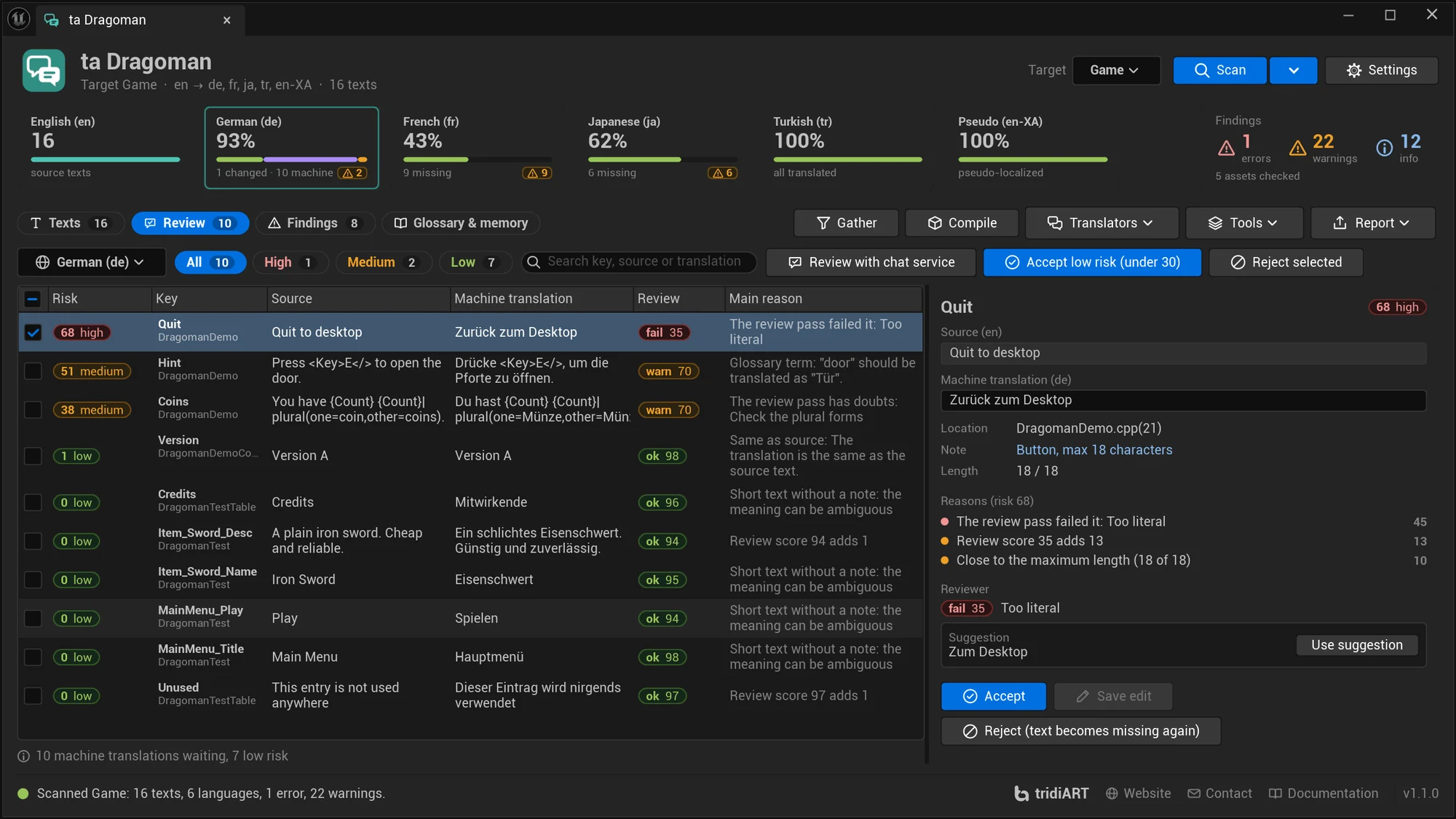
Section titled “Review page”The Review page lists the machine translations of one language, riskiest first, with the reasons for the risk and what the review pass said. Pick the language in the language box; its menu shows how many machine translations wait in each language.
- All, High, Medium and Low filter by risk level, with their counts.
- The search box finds text in the key, the source, the translation, the namespace and the main reason.
- Review with chat service has a chat service check the machine translations (the selected ones, or all of them) against their source, your glossary, the maximum length and the style guide. The verdicts sort the list; nothing is changed automatically.
- Accept low risk (under 30) marks every machine translation with a low risk as reviewed. They no longer show up here.
- Reject selected removes the selected machine translations: the texts become missing again. Translations somebody made are never removed.
The columns are Risk (the score and its level), Key (with the namespace below), Source, Machine translation, Review (the verdict and the score, or “—” when the review pass hasn’t checked it yet) and Main reason. The line under the list counts the machine translations waiting and how many have a low risk.
Select a machine translation to see its source, the translation in an edit box, the location, note and length, the Reasons with what each adds to the risk, and the Reviewer’s verdict, issue and suggestion. Use suggestion puts the reviewer’s translation into the box. Then:
- Accept keeps the translation (with your edit, if you made one) as reviewed.
- Save edit writes the text in the box as the reviewed translation.
- Reject (text becomes missing again) removes this machine translation. Translate it again later, or by hand.
After each step the list moves on to the next text. How the risk is counted is described in Review queue.
Findings page
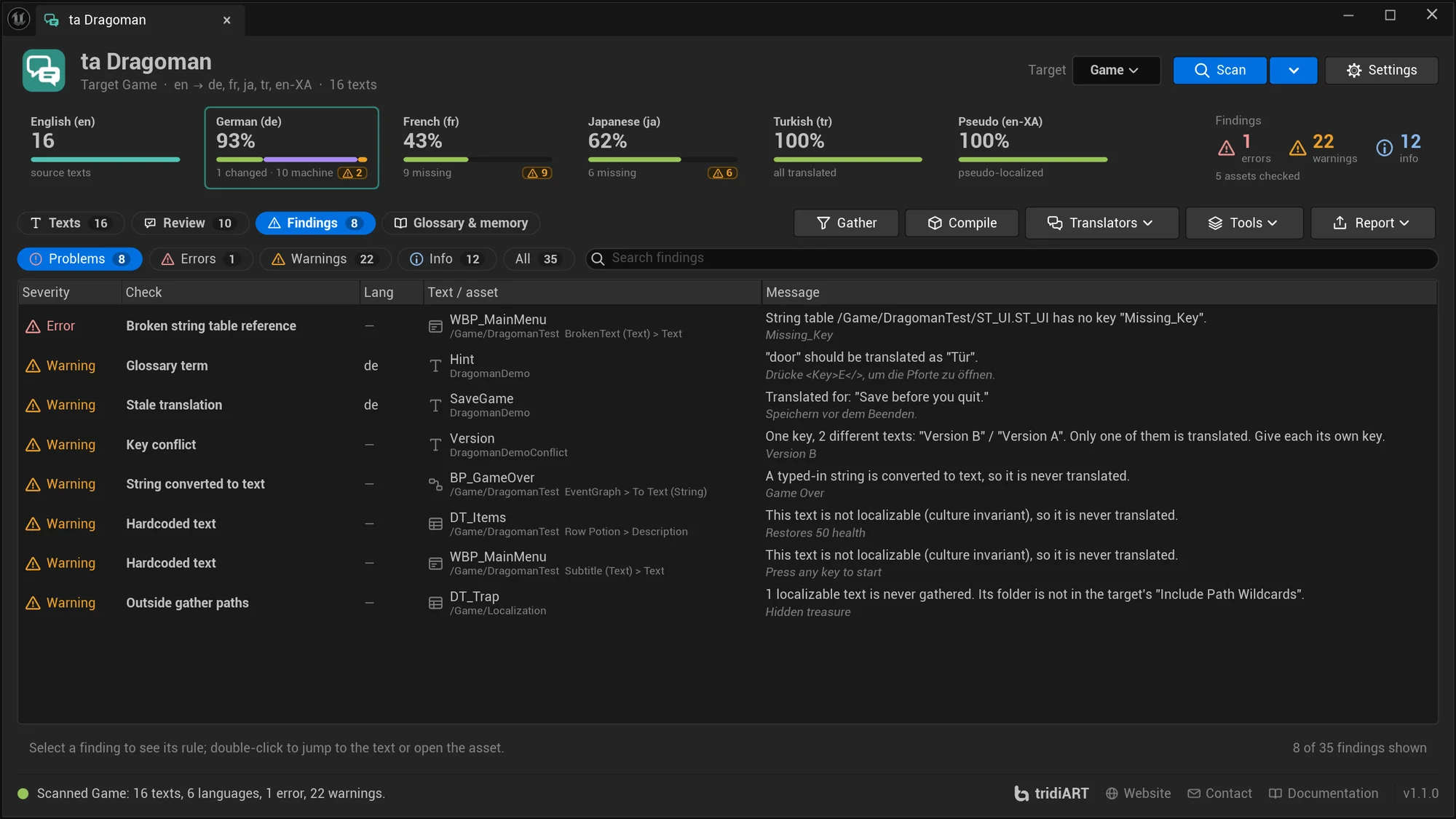
Section titled “Findings page”The Findings page lists everything the checks found.
| Filter | Shows |
|---|---|
| Problems (default) | Errors and warnings, without missing translations. |
| Errors, Warnings, Info | Findings of that severity. |
| All | Every finding. |
The columns are Severity, Check (the rule’s name; hover it for its description), Lang, Text / asset and Message. The list is sorted by severity, errors first; click a header to sort by another column. The search box finds text in the message, key, text, asset, language, rule and location.
Double-click a finding to jump to its text on the Texts page, or to open its asset. The bar below the list shows the selected finding’s rule, rule id, description and location, with Show text and Open asset buttons. For a setup finding the second button is Repair gather setup.
See Checks for every rule.
Glossary & memory page
Section titled “Glossary & memory page”Four cards show Dragoman’s project files:
- Glossary: the number of terms, and Open to edit
Glossary.csv. - Notes: the number of texts with a note or maximum length, and Open to edit
Notes_<Target>.csv. - Translation memory: the number of remembered translations, and Remember now to add every current translation.
- Data folder: where the files are, relative to the project (
Localization/Dragomanby default), and Open folder.
Below them, the Glossary preview shows the first 40 terms with their translations per language.
Files open in the program your system uses for CSV files. Scan again after editing them.
When the panel is docked narrow, the three menus are submenus of More.
Translators
Section titled “Translators”| Item | Does |
|---|---|
| To do: language (CSV) | A package with the missing, changed and machine texts of the selected language. |
| To do: every language (CSV) | One CSV per language with what still needs work. |
| To do: every language (Excel) | One .xlsx workbook per language for Excel, LibreOffice or Google Sheets, with the same columns as the CSV. |
| To do: every language (XLIFF 1.2) | XLIFF 1.2 for translation tools like Crowdin, Lokalise, Phrase, memoQ or Trados. Values and tags travel as protected inline codes. |
| To do: every language (XLIFF 2.0) | XLIFF 2.0 with the size restriction module for the maximum lengths. |
| To do: every language (PO) | Gettext PO files for Poedit, Crowdin, Lokalise and other tools. Changed and machine texts are marked fuzzy. |
| Everything: every language (CSV) | All texts with their current translations, for a full review. |
| Import translations… | Imports a translated CSV, PO, XLIFF or Excel file after you review every change. |
| Open package folder | Opens the folder packages are written to. |
See Translators.
| Item | Does |
|---|---|
| Build pseudo language (en-XA) | Adds the pseudo language to the target, fills it and compiles it. See Pseudo-localization. |
| From memory: same texts | Missing texts whose source was translated before get that translation. |
| From memory: similar texts (to review) | Missing texts get the translation of a similar source (75 % or more). They go in as changed, so they show up for review. |
| Machine translate missing texts… | Opens the machine translation dialog for the missing texts of the selected language. Results go into the review queue and never replace a translation. See Machine translation. |
| Repair gather setup… | Finds and fixes what makes Gather fail or keeps translations out of the game. See Repair gather setup. |
| Open glossary, Open notes | Open the files, and create them first if they don’t exist. |
| Remember translations now | Copies every current translation into the memory. Scan and Gather do this too. |
| Open data folder | Opens Localization/Dragoman. |
The fill and machine translation items work on the language selected on the Texts page and don’t compile.
Report
Section titled “Report”| Item | Does |
|---|---|
| HTML report | Writes the HTML report and opens it in your browser. |
| JSON | Writes the whole report as JSON, for your own tools. |
| Open report folder | Opens Saved/Dragoman/Reports. |
Repair gather setup
Section titled “Repair gather setup”Repair gather setup… (in the Target menu and in Tools) opens the Gather setup window. It lists what makes Gather fail or keeps translations out of the game, for the target picked at the top:
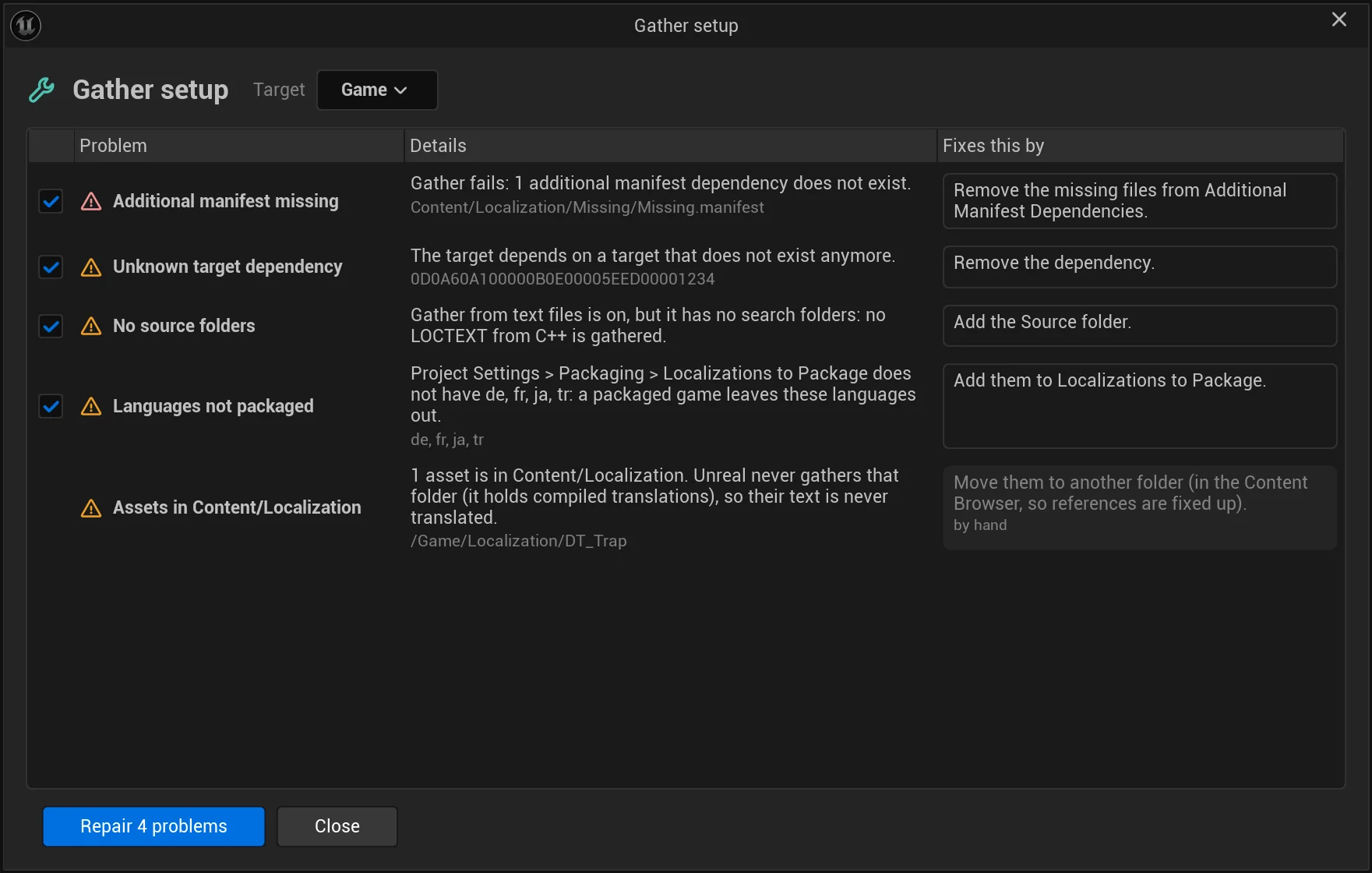
- Problem: the problem’s name, with an error icon when it makes Gather fail.
- Details: what is wrong, with the files, folders or languages it is about.
- Fixes this by: what the repair changes. Problems the window can’t fix say by hand.
Tick the problems to fix and click Repair n problems. The repair changes the target’s settings, the Config/Localization files or DefaultGame.ini, like the Localization Dashboard and the Project Settings do. The window lists what it changed and keeps the problems that are left; when there is nothing left to fix, the button says Nothing to repair. Close the window and the panel scans again: “Gather setup repaired. Gather now to collect the texts with the new setup.”
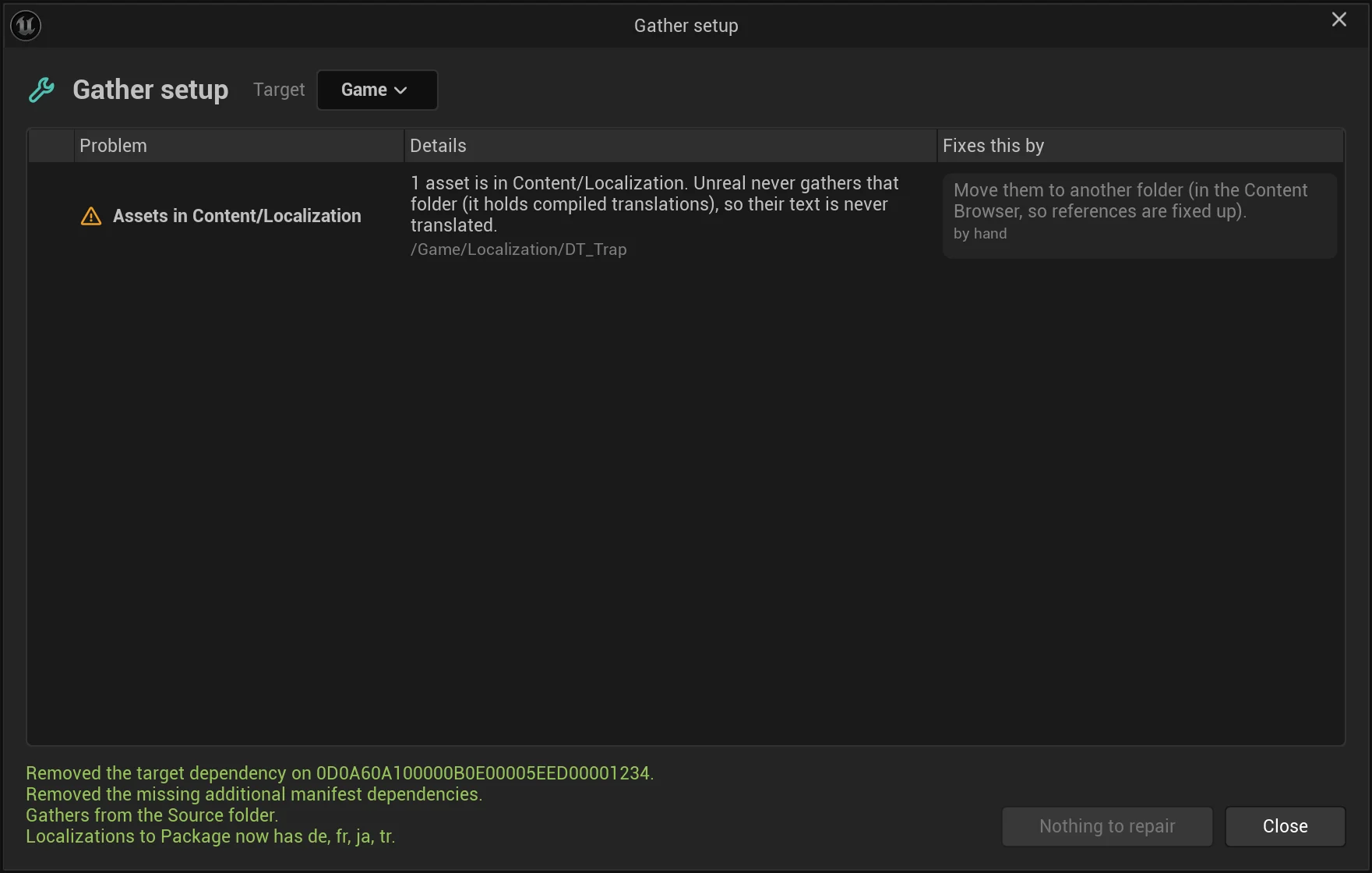
When you click Gather and the setup would make it fail, the panel asks first: “Gather would fail: … Repair the gather setup first?” Every problem the window knows is listed in Checks.
Gather window
Section titled “Gather window”Gather (and Gather, then scan) runs Unreal’s Gather Text for the target in its own process and shows it in a window:
- a progress bar per gather step, with the time so far, and the step it is on, for example “Step 2 of 5: GatherTextFromAssets”;
- the live log of the gather, with errors and warnings marked. The engine’s start-up lines stay out of it; Warnings & errors shows only those. Known errors get a hint under them, for example for missing manifests, assets saved by a newer engine version or files locked by source control;
- when it ends, how long it took and how many errors and warnings it had, for example “Done in 0:14, 0 errors, 2 warnings”.
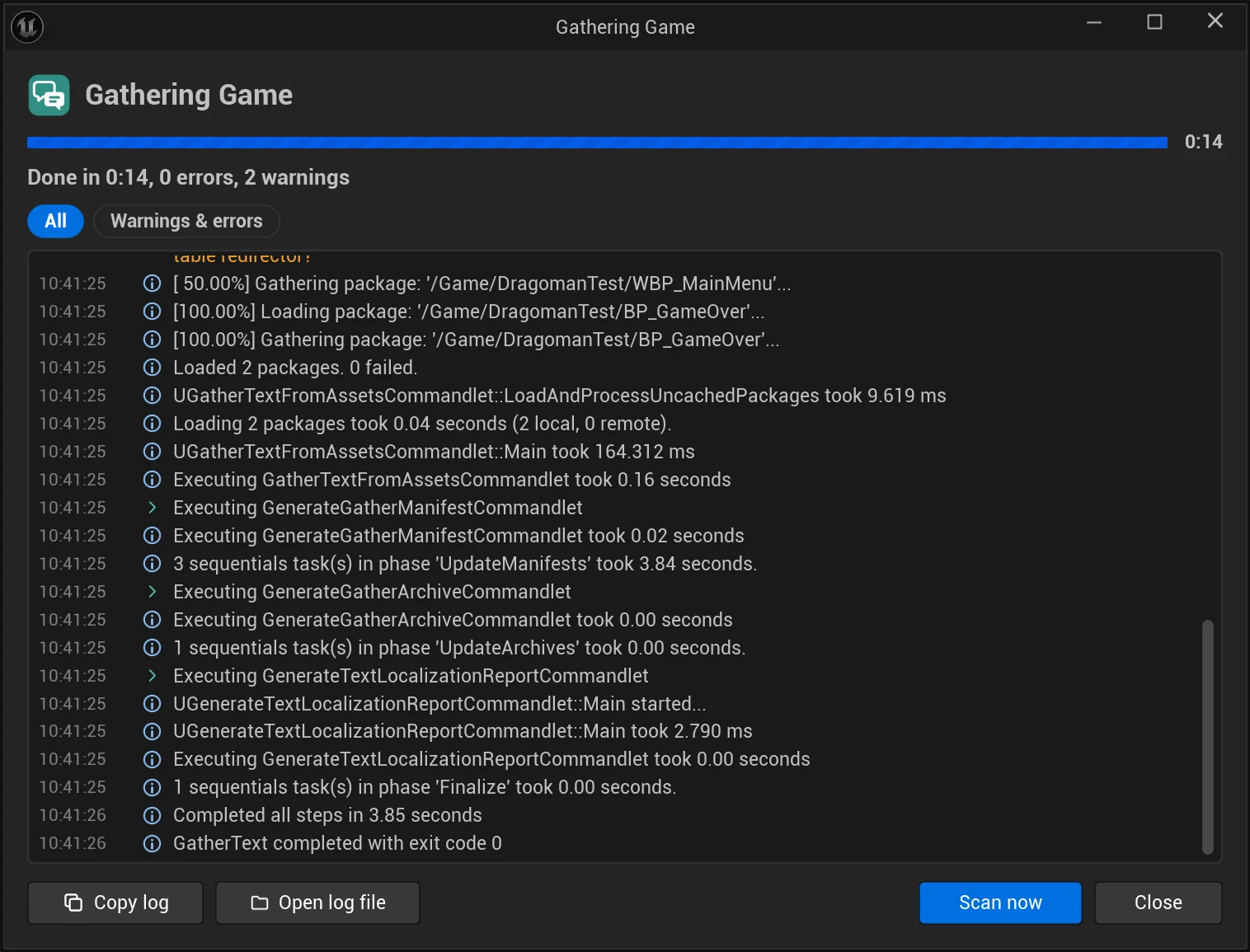
Copy log copies the whole output, Open log file opens the log saved under Saved/Dragoman/Logs (written when the gather ends), and Scan now scans the target with the new texts. Cancel stops the gather process; the manifest and archives keep their last state.
Content Browser
Section titled “Content Browser”Right-click Blueprints, Widget Blueprints, data tables or data assets and choose Check Text (in the tridiART section) to check just those assets for hardcoded text, To Text conversions and broken string table references. The panel opens on the Findings page with the result.
Status bar
Section titled “Status bar”The bottom line shows what the panel last did, for example “Scanned Game: 16 texts, 6 languages, 1 error, 22 warnings.”, with an amber icon after an error. On the right are tridiART, links to its website, contact and this documentation, and the plugin version.